

Notification channels
OnCallAlerting notifies people in two ways: the in-app inbox and Slack.
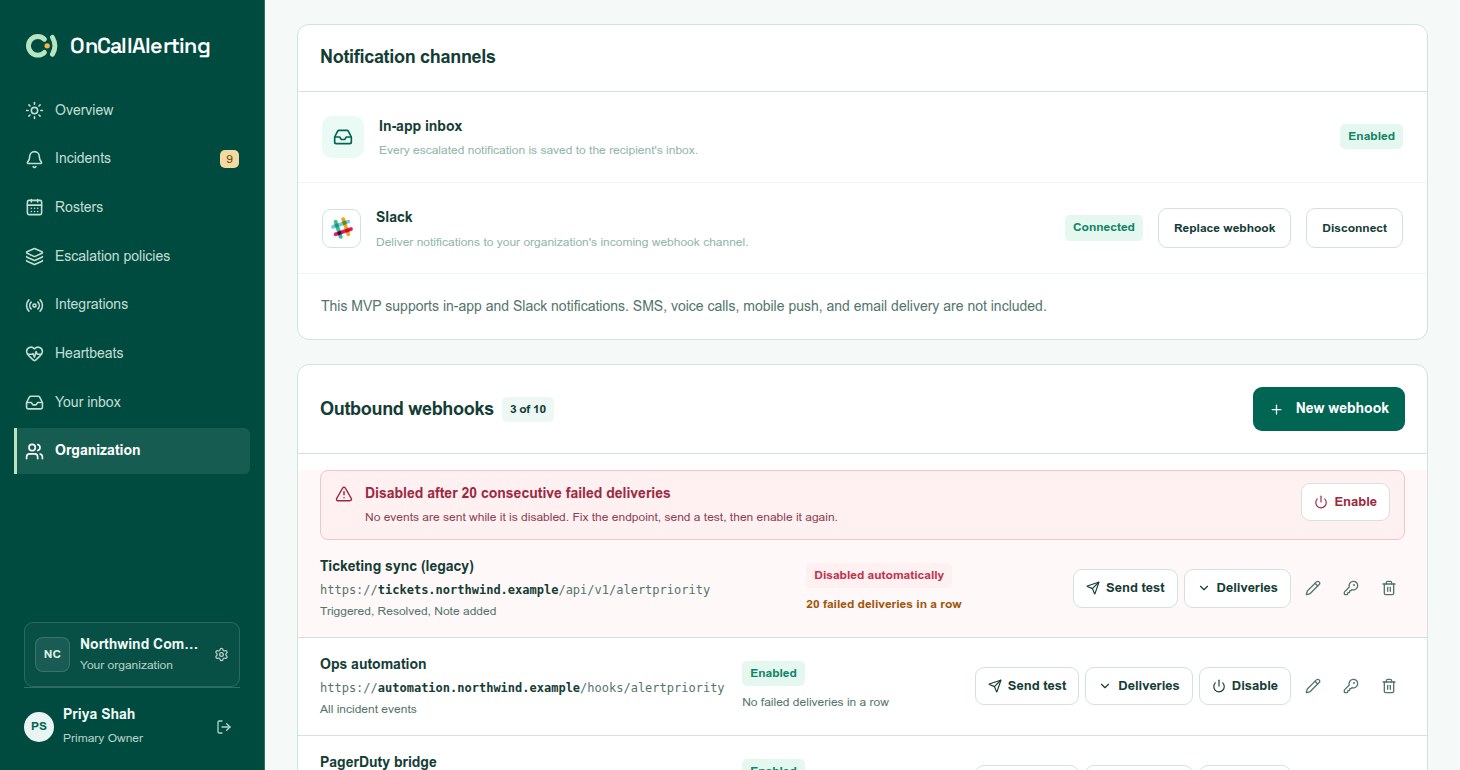
In-app inbox
Section titled "In-app inbox"Always on. Every notification is saved to the recipient's Your inbox, including the ones also sent to Slack. See notifications and delivery.
Slack notifications go to one channel through a Slack incoming webhook. Each message names the person it is for and links to the incident.
Connect Slack
Section titled "Connect Slack"- In Slack, create an incoming webhook for the channel your team watches, and copy its URL.
- In OnCallAlerting, open Organization and, under Notification channels, select Connect Slack.
- Paste the Incoming webhook URL and select Save Slack connection.
- The URL must start with
https://hooks.slack.com/services/. - It is stored on the server and never shown in the browser again.
- An organization has one Slack connection. Update connection replaces it, and the bin disconnects it.
Only owners and administrators can connect Slack. Members see whether it is connected.
Use Slack in a policy
Section titled "Use Slack in a policy"Slack is chosen per escalation level: set Notification channel to Slack + in-app. The option is available once Slack is connected. Reassign and responder notifications use the channel of the policy's level 1.
Slack messages have no buttons. Acknowledge and resolve in OnCallAlerting.
If you disconnect Slack
Section titled "If you disconnect Slack"Policies that use Slack + in-app keep that setting. Their Slack notifications fail with "Slack is not connected for this organization", and the in-app notifications are still recorded. Connect Slack again, or change the levels to In-app inbox.
Channels OnCallAlerting does not have
Section titled "Channels OnCallAlerting does not have"For signed events to your own tools, such as a ticketing system or a chat bot, use outbound webhooks.