

Rosters
A roster answers "who is on call right now?". Escalation policies point at rosters, so the policy keeps working as people rotate.
Owners and administrators create and edit rosters. Members can see them.
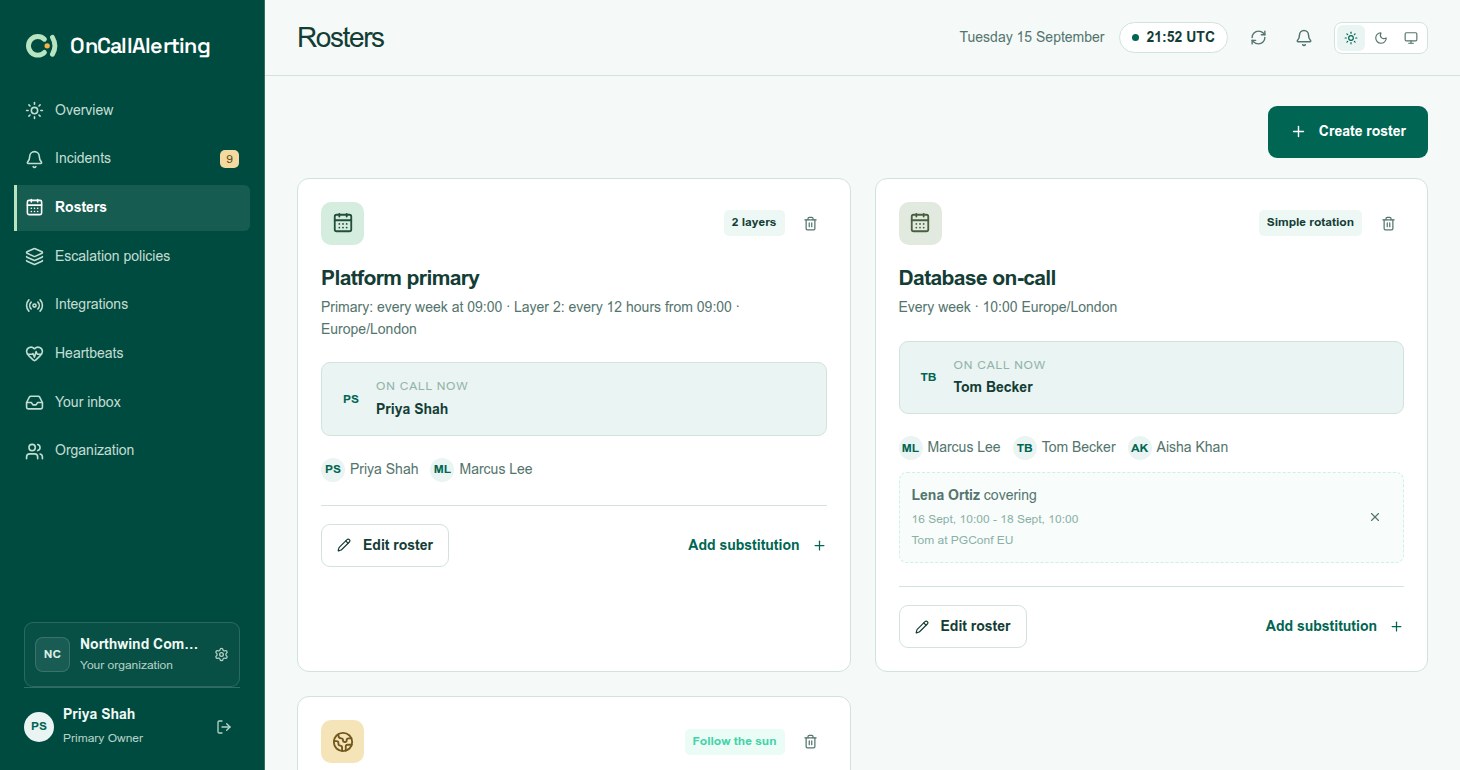
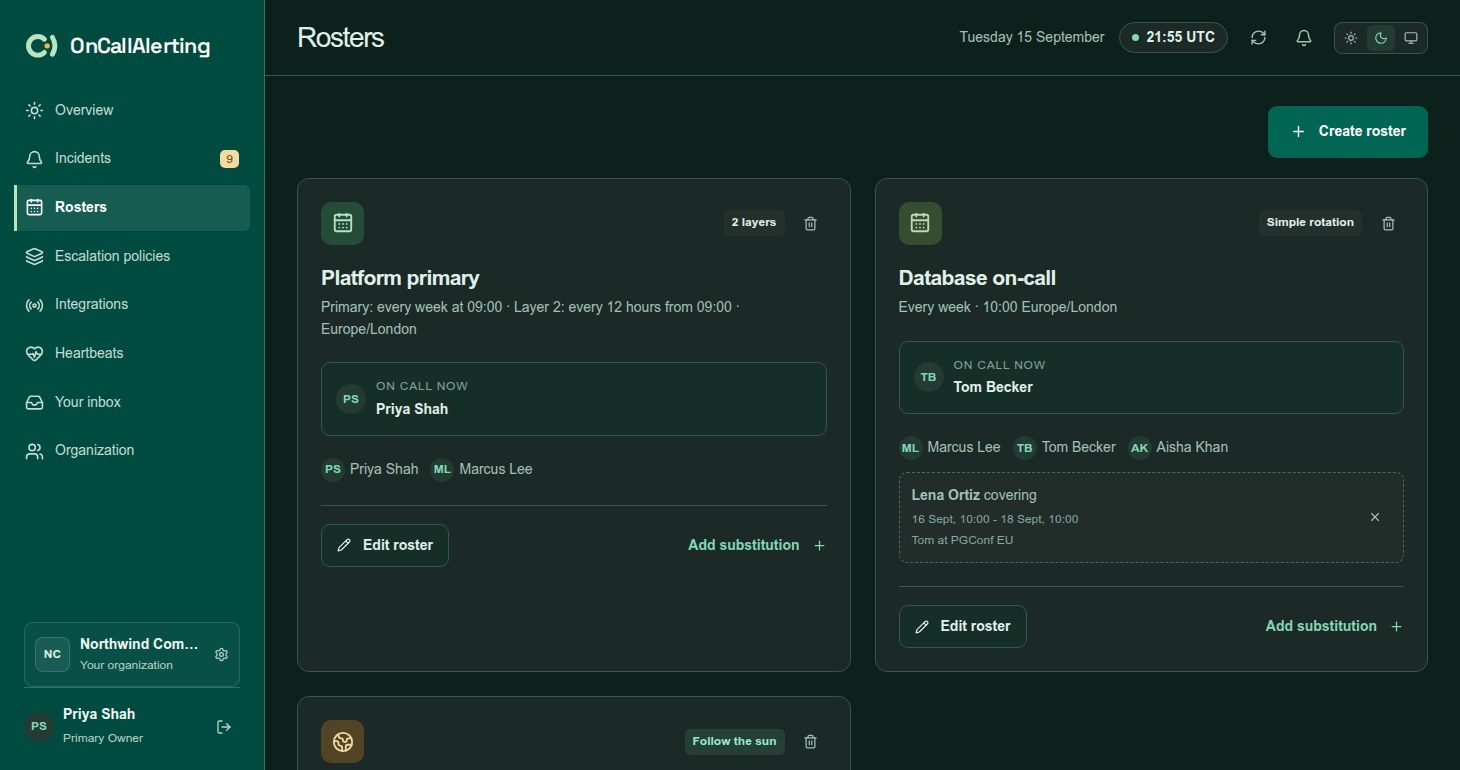
Each card on Rosters shows the rotation type (Simple rotation, the number of layers, or Follow the sun), a summary of the rotation, who is On call now, the people in it and any current or future substitutions. Covering marks a substitution in effect.
Create a simple rotation
Section titled "Create a simple rotation"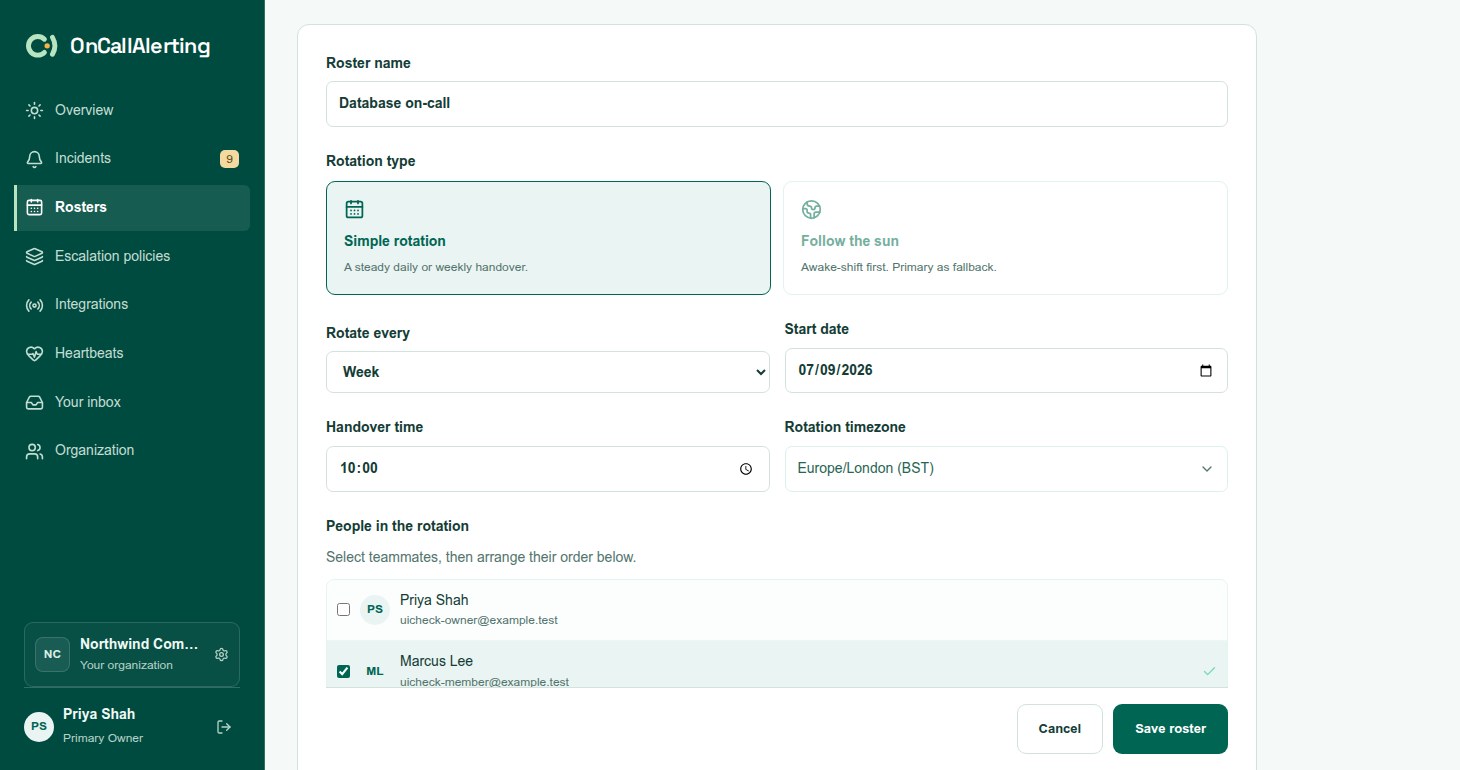
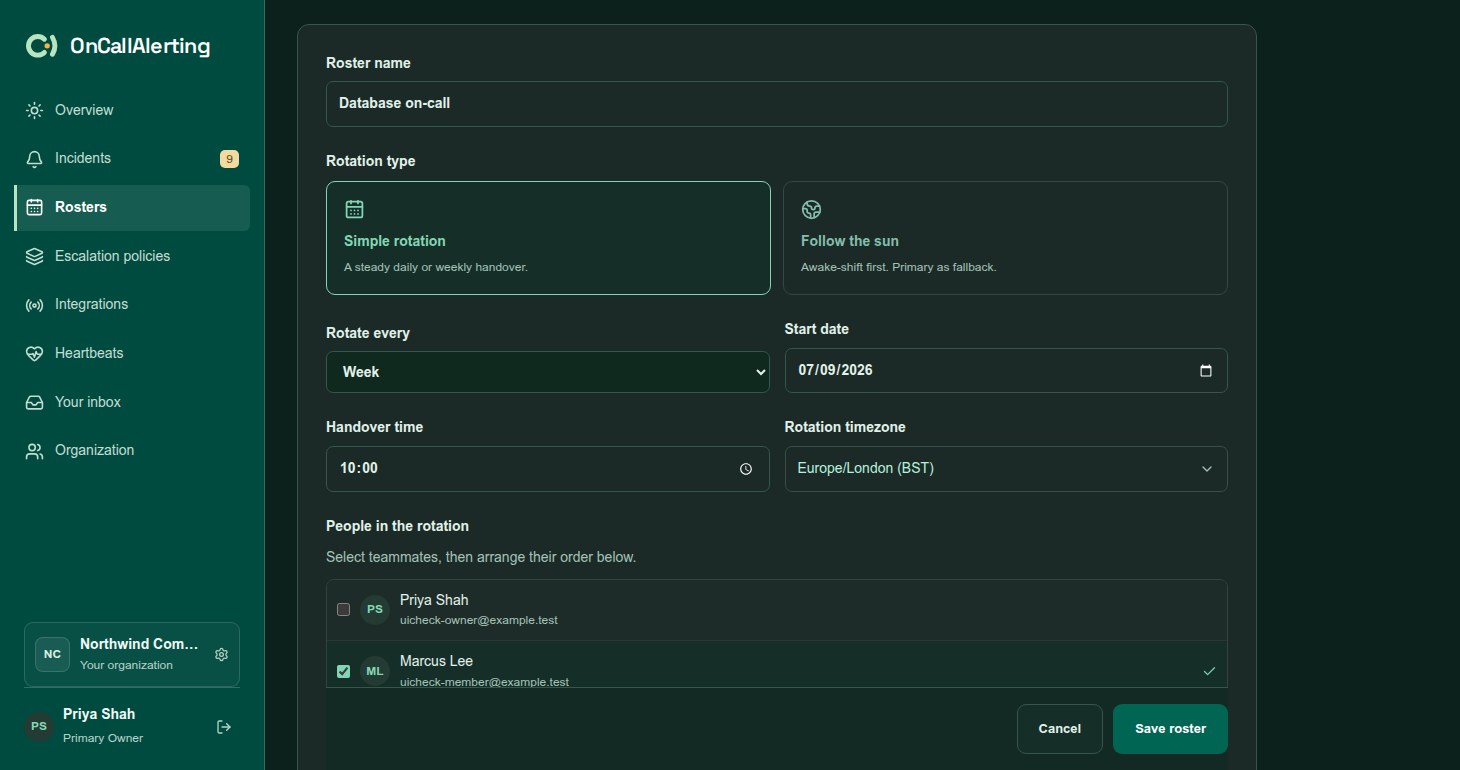
Select Create roster, then:
- Enter a Roster name.
- Under Rotation type, choose Simple rotation, or Follow the sun for working shifts.
- Set Rotate every: Day, Week, Two weeks, or Custom number of days (1-90).
- Set the Start date and the Handover time. The first person's turn starts on that date at that time.
- Choose the Rotation timezone.
- Under People in the rotation, tick people, then use the arrows to set the order. Pending invitations cannot be added until they are accepted.
- Select Create roster.
How the rotation turns:
- Turns follow the order you set and repeat.
- Handovers happen at the handover time in the roster's timezone. A rotation counted in days keeps that wall-clock time across daylight-saving changes.
- Before the start date and time, nobody is on call from this roster.
Layers
Section titled "Layers"A single rotation covers most teams. Add layers when you need extra cover on top of it, such as nights or weekends, or a rotation counted in hours.
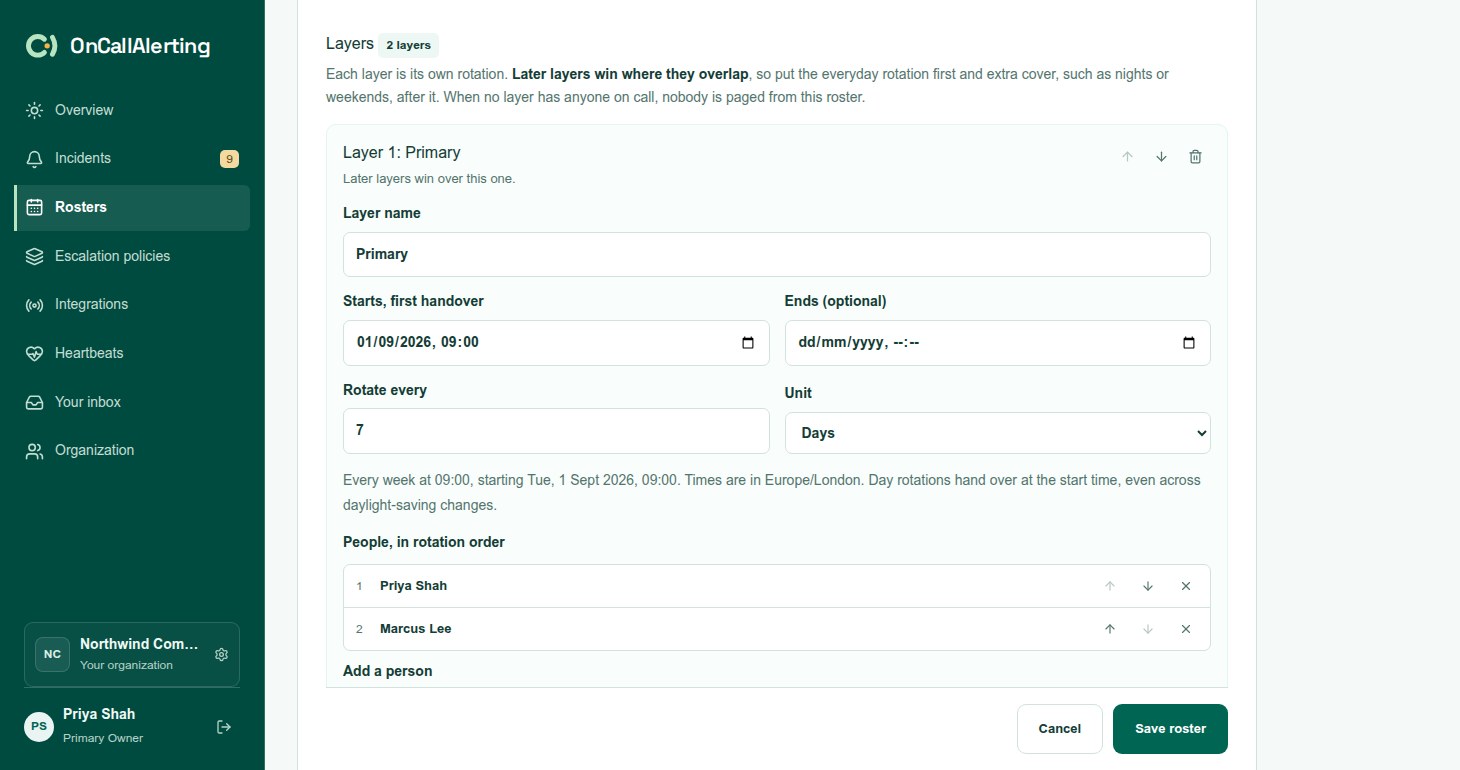
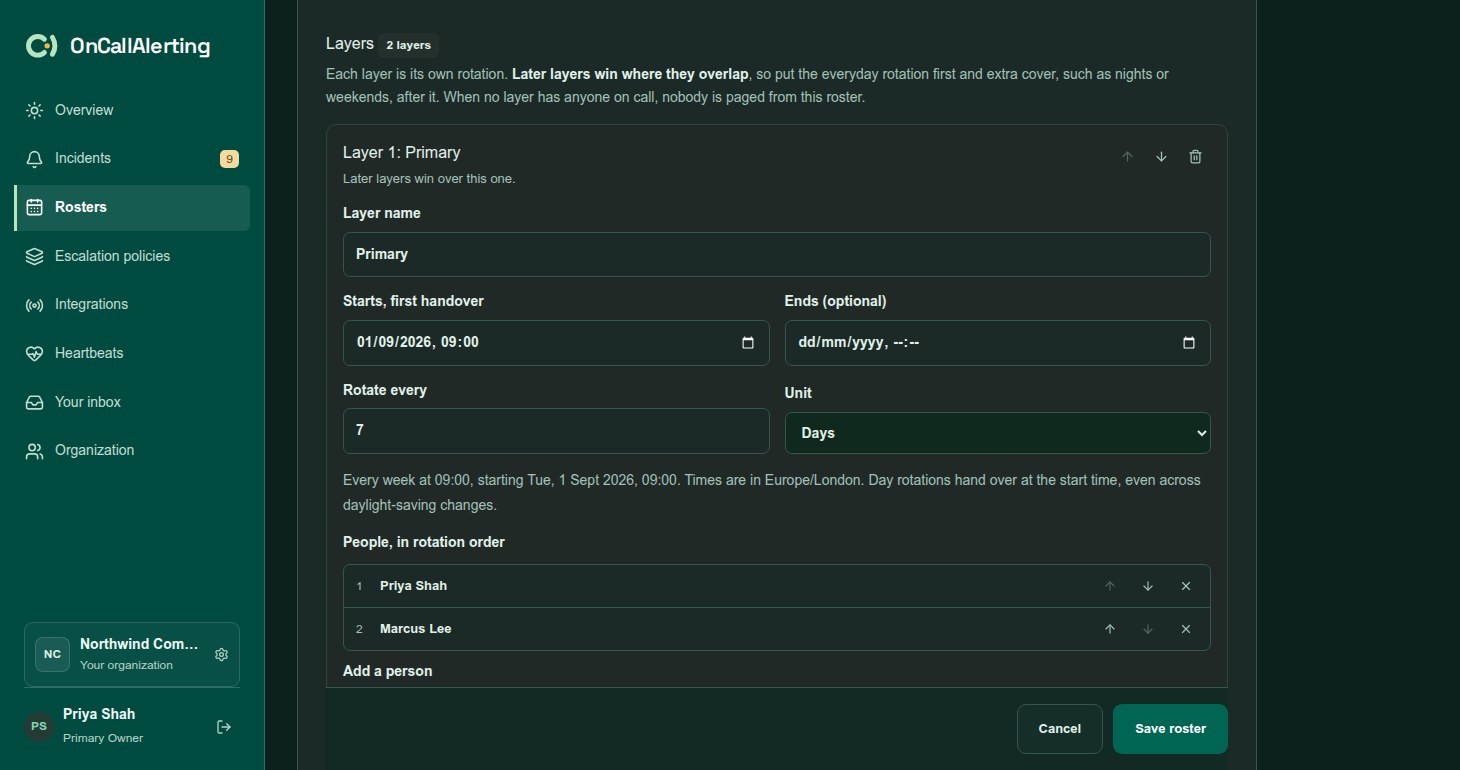
In a simple rotation, select Add layer. Your rotation becomes layer 1, "Primary", and a second layer is added. Before the first save you can go back with Use a single rotation instead.
Each layer has:
| Field | What it does |
|---|---|
| Layer name | Shown in summaries and the preview. |
| Starts, first handover | The date and time the layer starts. It is also the first handover. |
| Ends (optional) | After this, the layer covers nothing. Select No end to clear it. |
| Rotate every, Unit | 1-365 days or 1-2160 hours. Day rotations hand over at the start time every N days. Hour rotations count elapsed hours from the start. |
| People, in rotation order | Add people with Add to rotation. Add someone twice to give them two turns in each cycle. |
| Restrictions | Windows when the layer is on call. See below. |
Later layers win where they overlap. At any moment OnCallAlerting checks the layers from last to first and uses the first one that has someone on call. Put the everyday rotation first and extra cover after it.
When no layer has anyone on call at that moment, nobody is paged from this roster. If that leaves an escalation level with nobody, the primary owner is notified as a coverage gap.
Layer starts, ends, handovers and restrictions all use the Roster timezone. A roster can have up to 20 layers.
Restrictions
Section titled "Restrictions"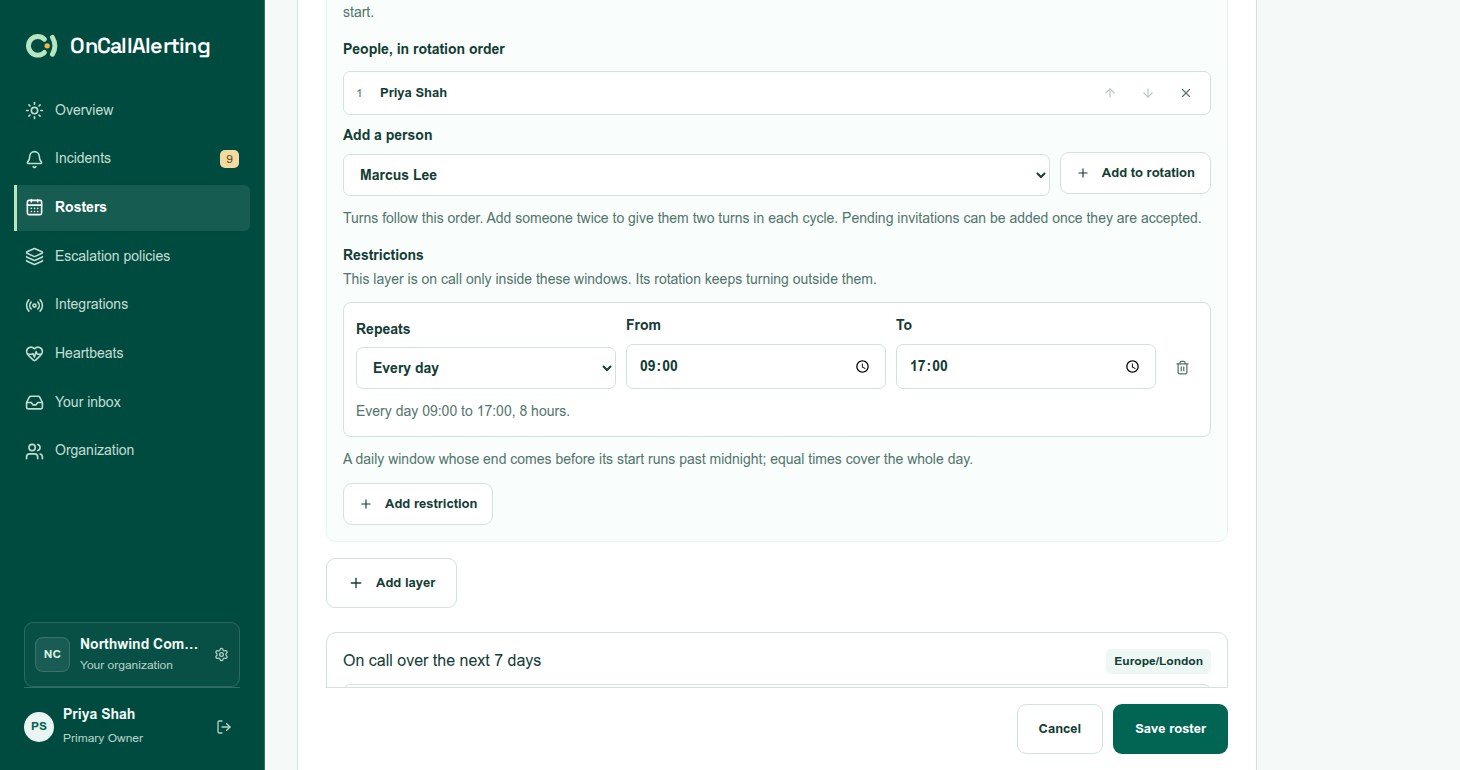
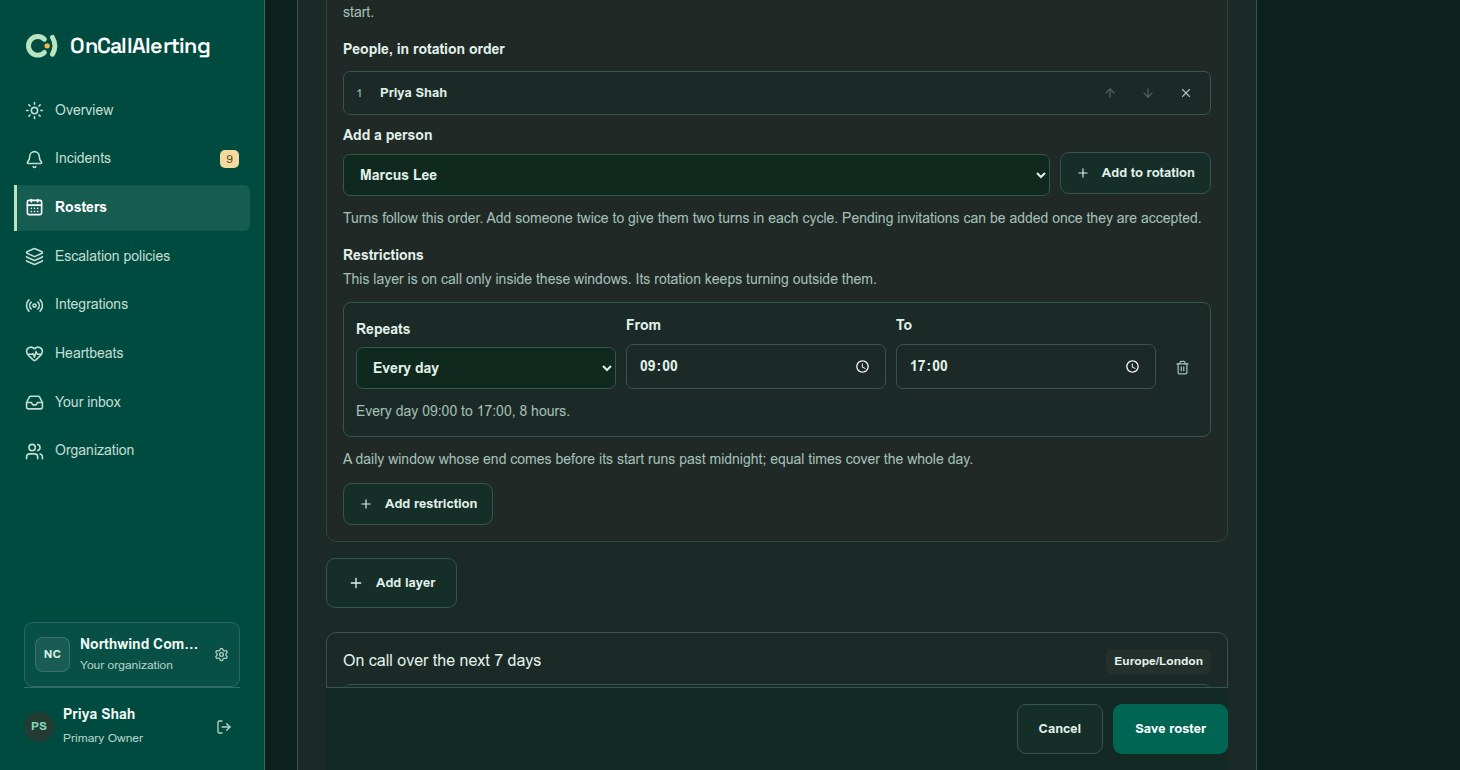
Without restrictions a layer is on call around the clock. Select Add restriction to limit it to windows:
- Every day: from a time to a time. An end before the start runs past midnight, so 18:00 to 08:00 covers the night. Equal times cover the whole day.
- Every week: from a day and time to a day and time. An end before the start wraps into the next week. The same day and time cover the whole week.
A layer with restrictions is on call only inside its windows. Its rotation keeps turning outside them: a restriction does not pause turns. A layer can have up to 50 restrictions.
Example: a "Primary" layer rotating every week at 09:00, and a "Nights" layer rotating every day at 18:00 with a daily restriction from 18:00 to 08:00. During the night the Nights person is on call. During the day the Nights layer has nobody, so the Primary person is on call.
Preview the next 7 days
Section titled "Preview the next 7 days"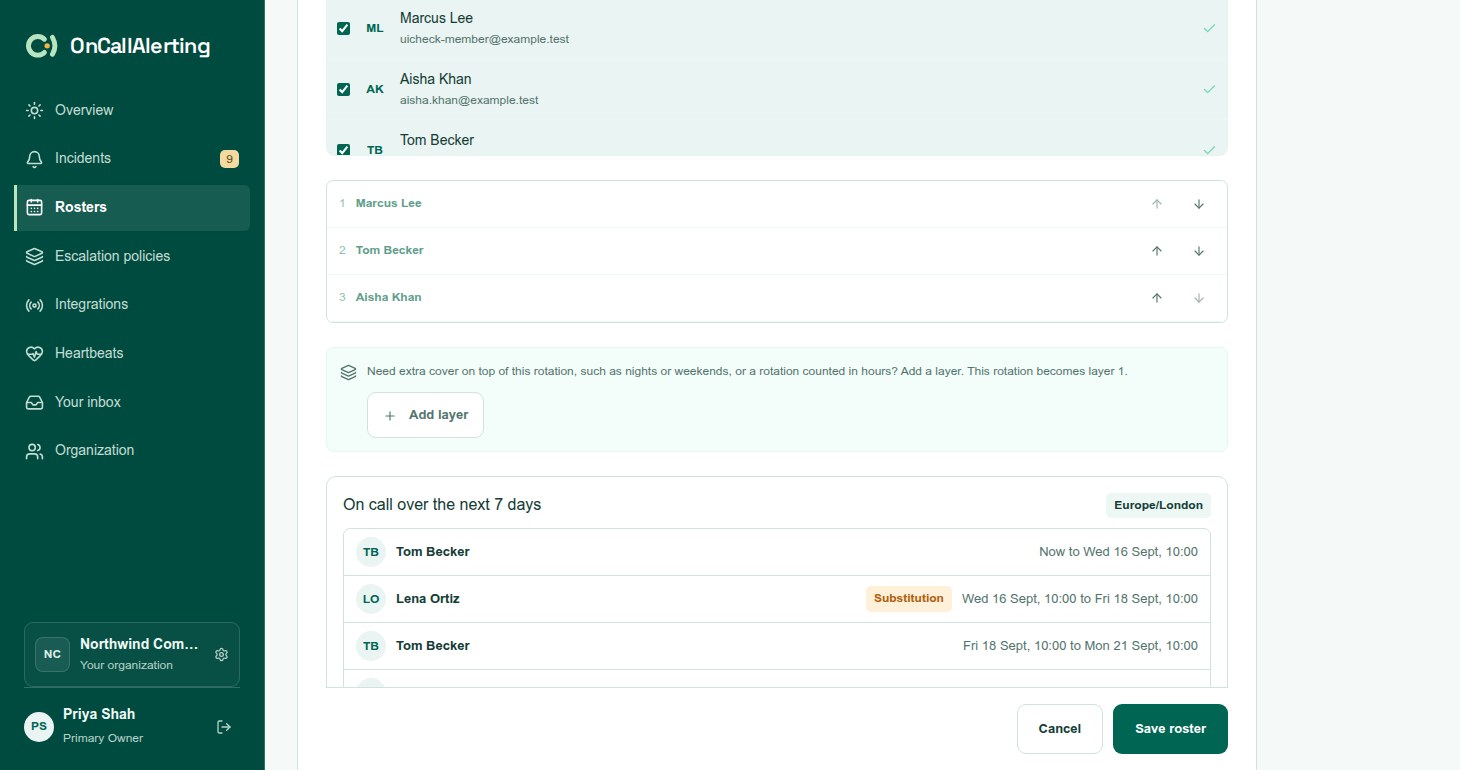
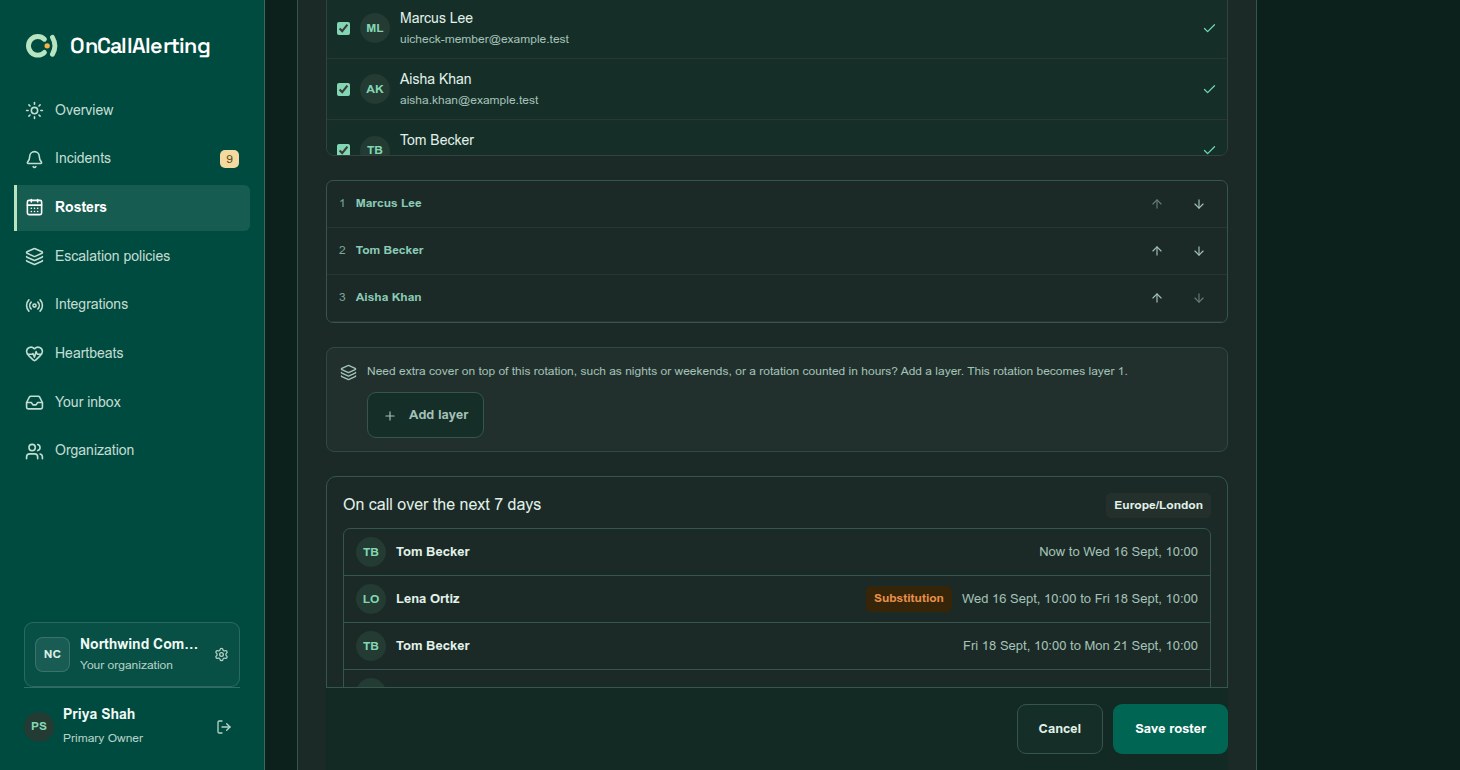
When you edit a saved roster, On call over the next 7 days lists who is on call and when, in the roster's timezone. It includes substitutions and rows with nobody on call. It shows the saved roster: save to see your changes there.
Substitutions
Section titled "Substitutions"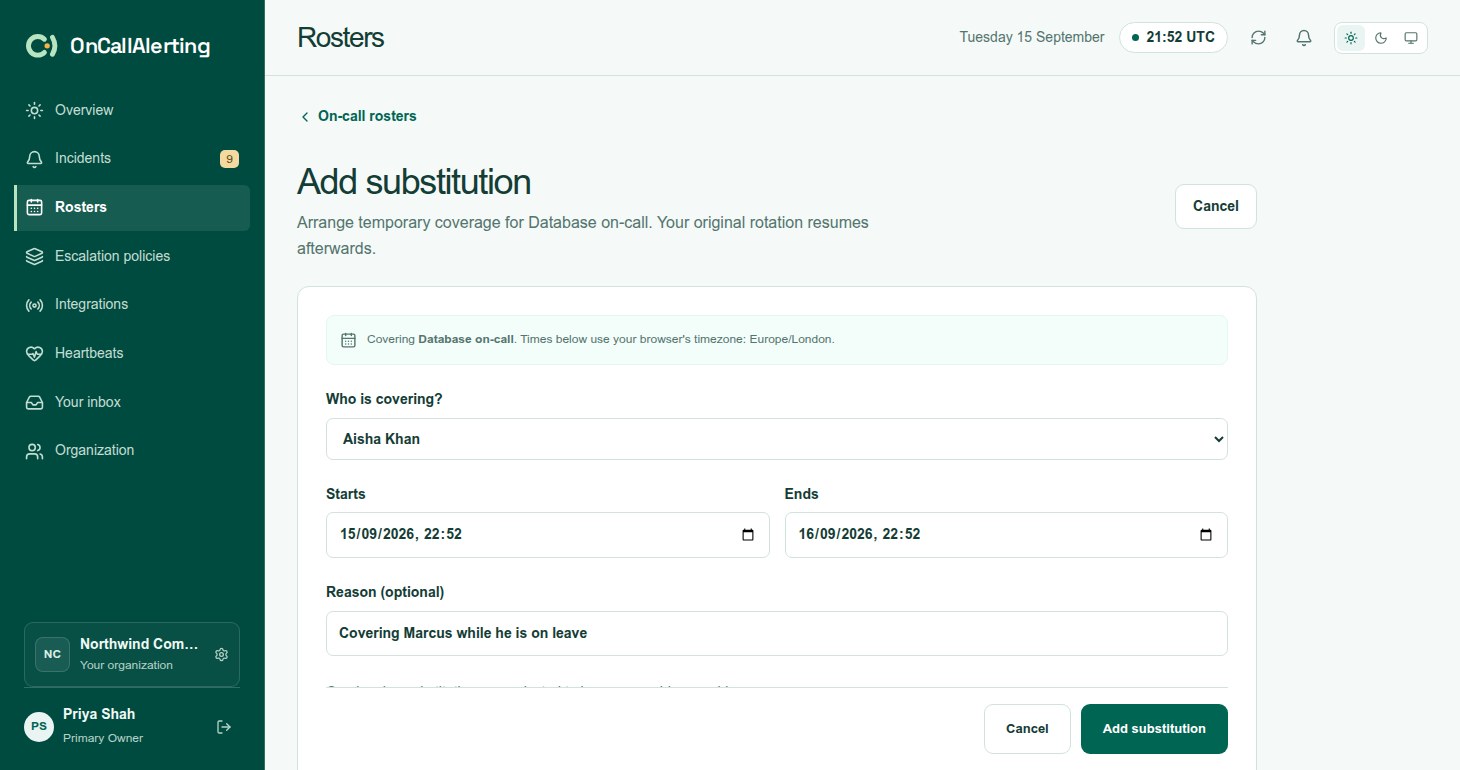
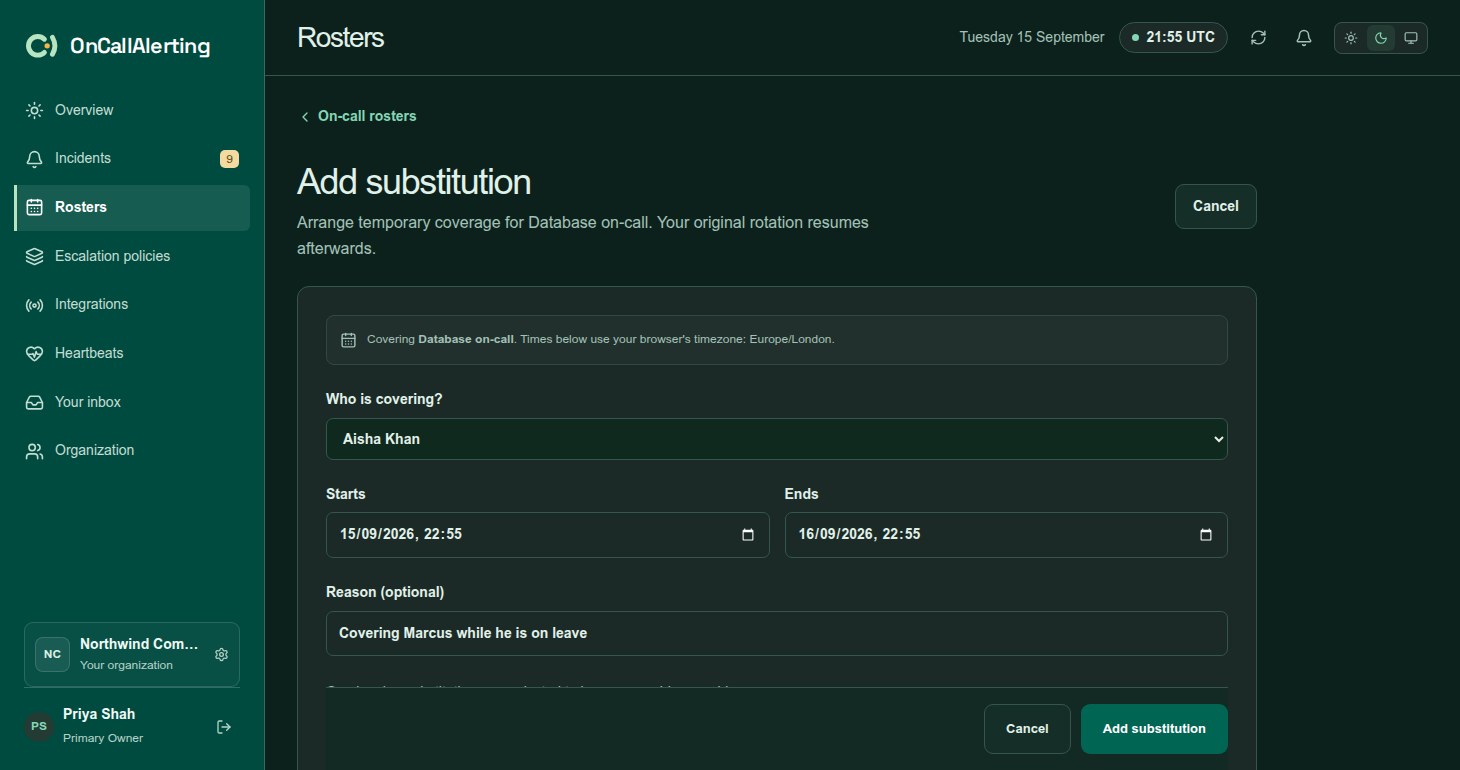
A substitution is temporary cover, for a holiday or an appointment. On a roster card, select Add substitution, then choose Who is covering?, Starts, Ends and an optional Reason. Times use your browser's timezone.
- A substitution wins over every layer and over follow-the-sun shifts. The substitute is notified directly.
- The rotation keeps turning underneath. When the substitution ends, whoever the rotation names at that moment is on call again.
- The end must be after the start and in the future, and a substitution lasts at most 90 days.
- Substitutions on one roster cannot overlap.
- A roster keeps up to 500 substitutions, including past ones.
- Remove a substitution with the cross next to it on the roster card.
Coverage overview
Section titled "Coverage overview"The Overview page shows the schedule for one roster at a time. Choose it with Roster. It opens on the first follow-the-sun roster, or the first roster.
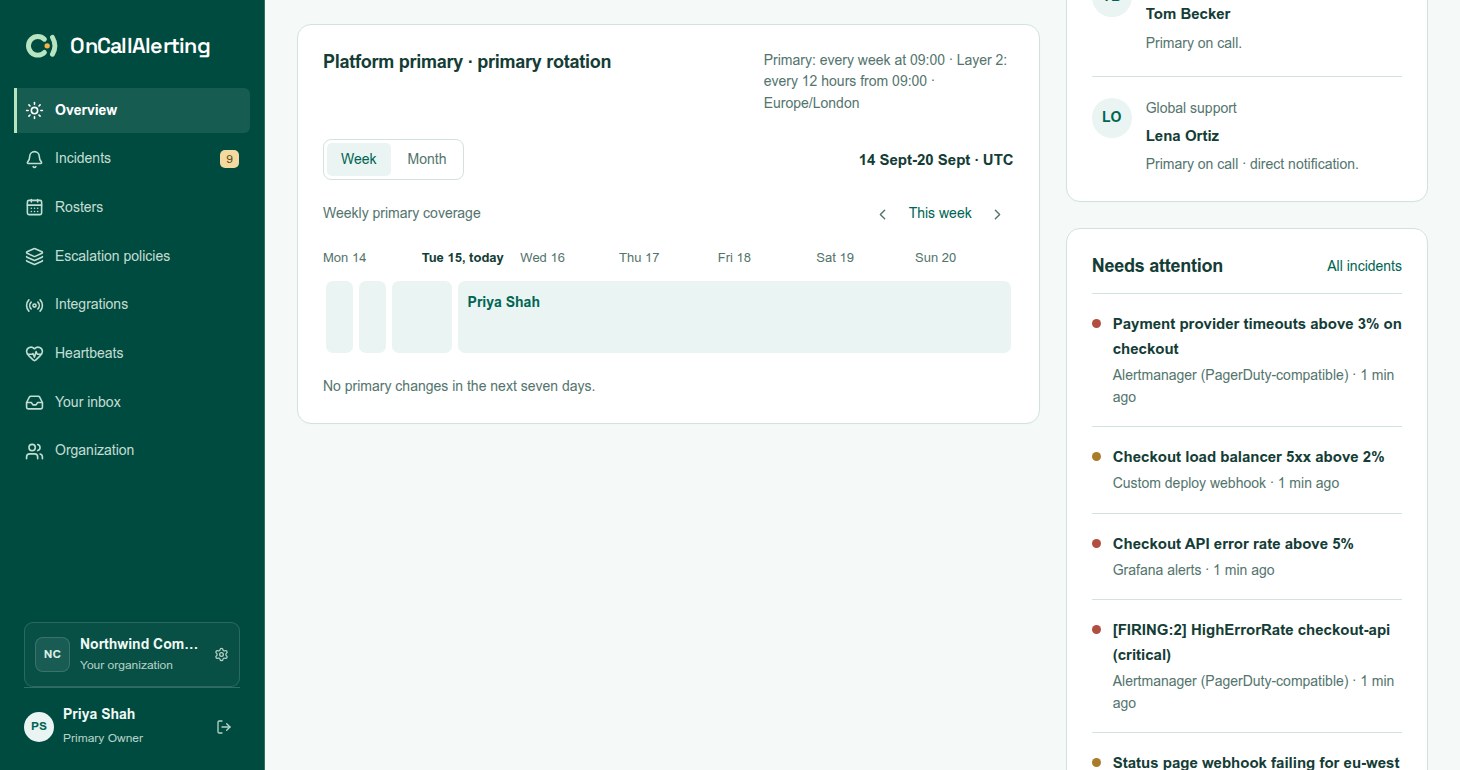
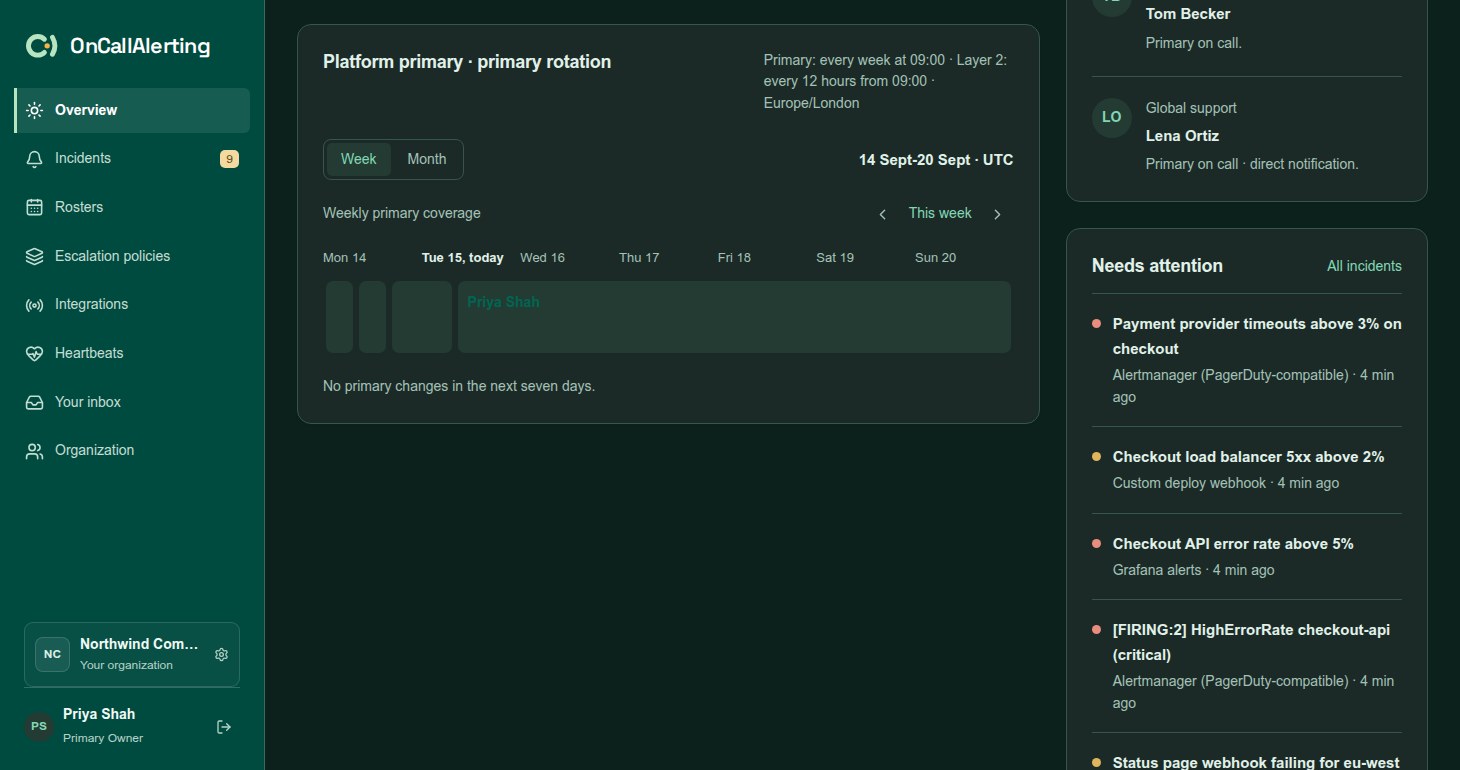
The primary rotation panel shows who is on call across a Week or a Month, in UTC. Use the arrows to move between periods, and This week or Back to this week to return. Substitutions are marked, and gaps show "Uncovered". Under the timeline, OnCallAlerting names the next primary change in the coming seven days.
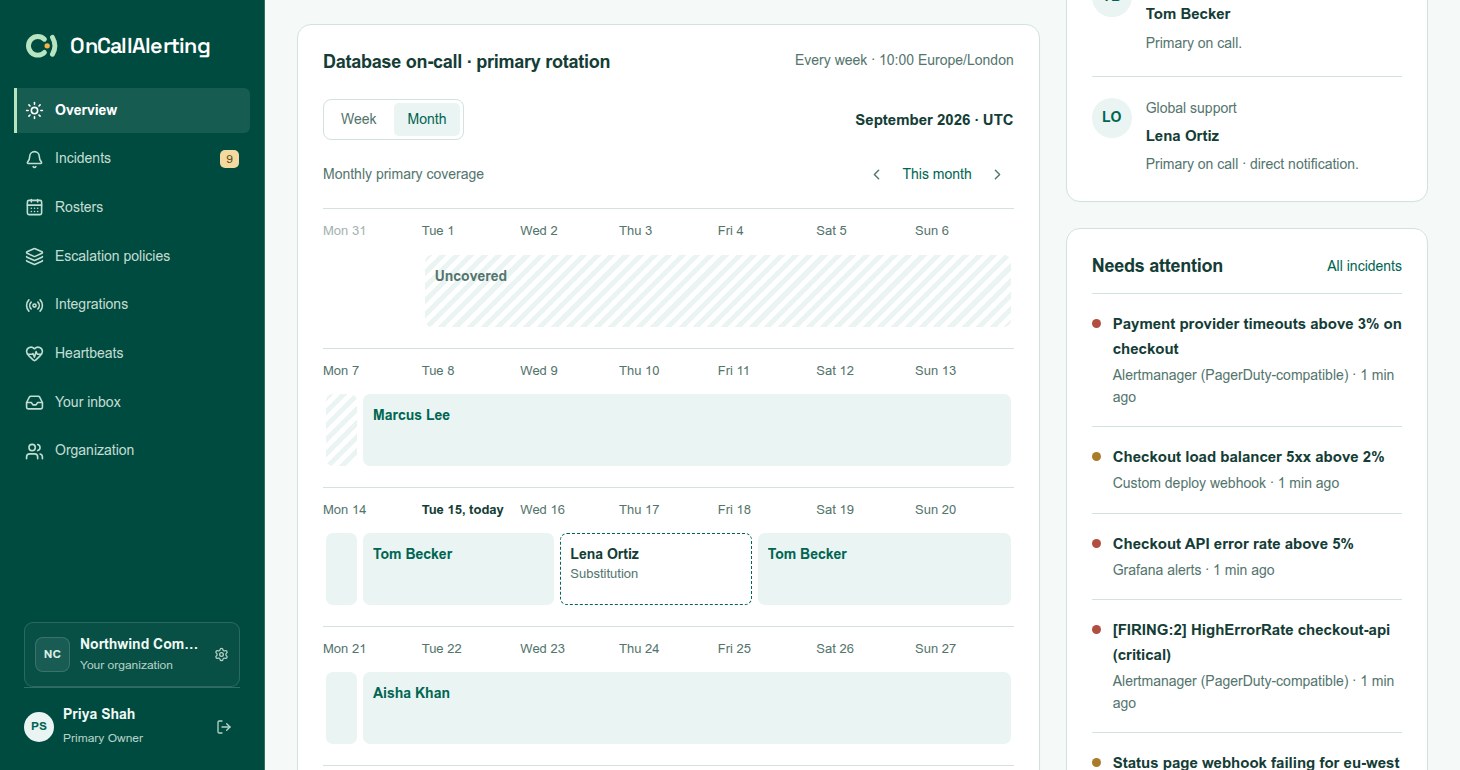
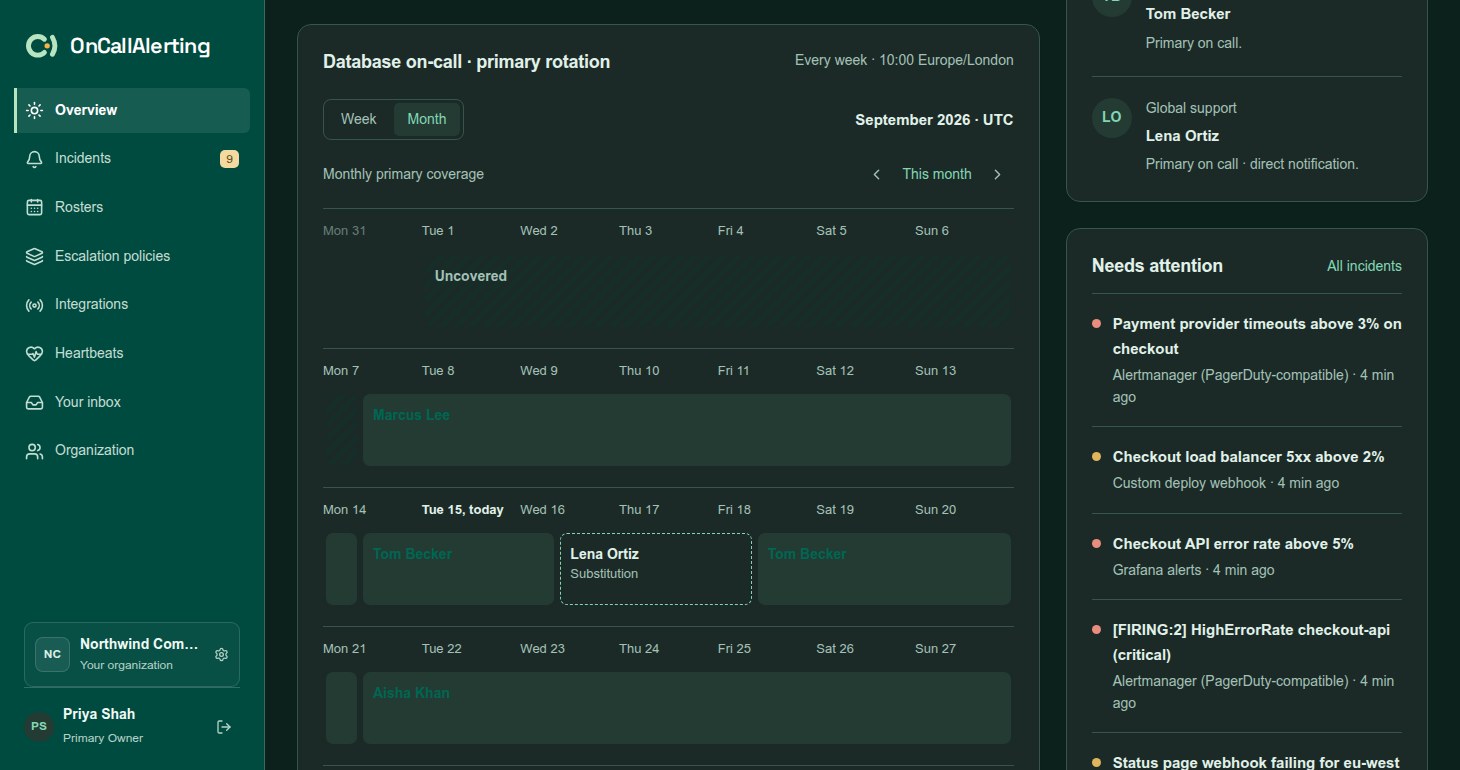
Also on the Overview page:
- Today across your shifts: the working shifts of a follow-the-sun roster. See follow the sun.
- Gets the next page: for each roster, who a non-critical alert would reach now.
- Needs attention: up to five open incidents that nobody has acknowledged.
Edit and delete
Section titled "Edit and delete"- Two people editing the same roster cannot overwrite each other. If the roster changed since you opened it, saving fails with "This roster changed. Refresh before saving again."
- A roster that an escalation policy uses, or that an active incident is escalating through, cannot be deleted.