

Working with incidents
An incident is one problem that needs an owner. Alert sources, heartbeats and test alerts open incidents. Every incident follows the escalation policy of the source that opened it.
How alerts become incidents
Section titled "How alerts become incidents"Each alert carries a deduplication key, such as an Alertmanager fingerprint, a PagerDuty dedup_key or an Opsgenie alias.
- No open or acknowledged incident has that key for that source: a new incident opens and its escalation policy starts.
- An open or acknowledged incident already has that key: the alert adds an occurrence to it. Nobody is notified again. The count shows as "events" in the list.
- A recovery, acknowledgement or resolve arrives for a key with no open incident: it is ignored. It never opens an incident.
- The incident is resolved: the next alert with the same key opens a new incident.
Keys are per source. The same key from two different sources opens two incidents. When incidents are merged, the merged keys point at the incident that stays open.
Status, severity and priority
Section titled "Status, severity and priority"| Field | Values | Set by |
|---|---|---|
| Status | open, acknowledged, resolved | People, alert sources and escalation |
| Severity | critical, warning, info | The alert, mapped per source. Severity decides whether follow-the-sun critical bypass applies. |
| Priority | P1-P5, or none | People, or an Opsgenie-compatible alert that sets priority. Priority is a label for people. It does not change severity or escalation. |
The incident list
Section titled "The incident list"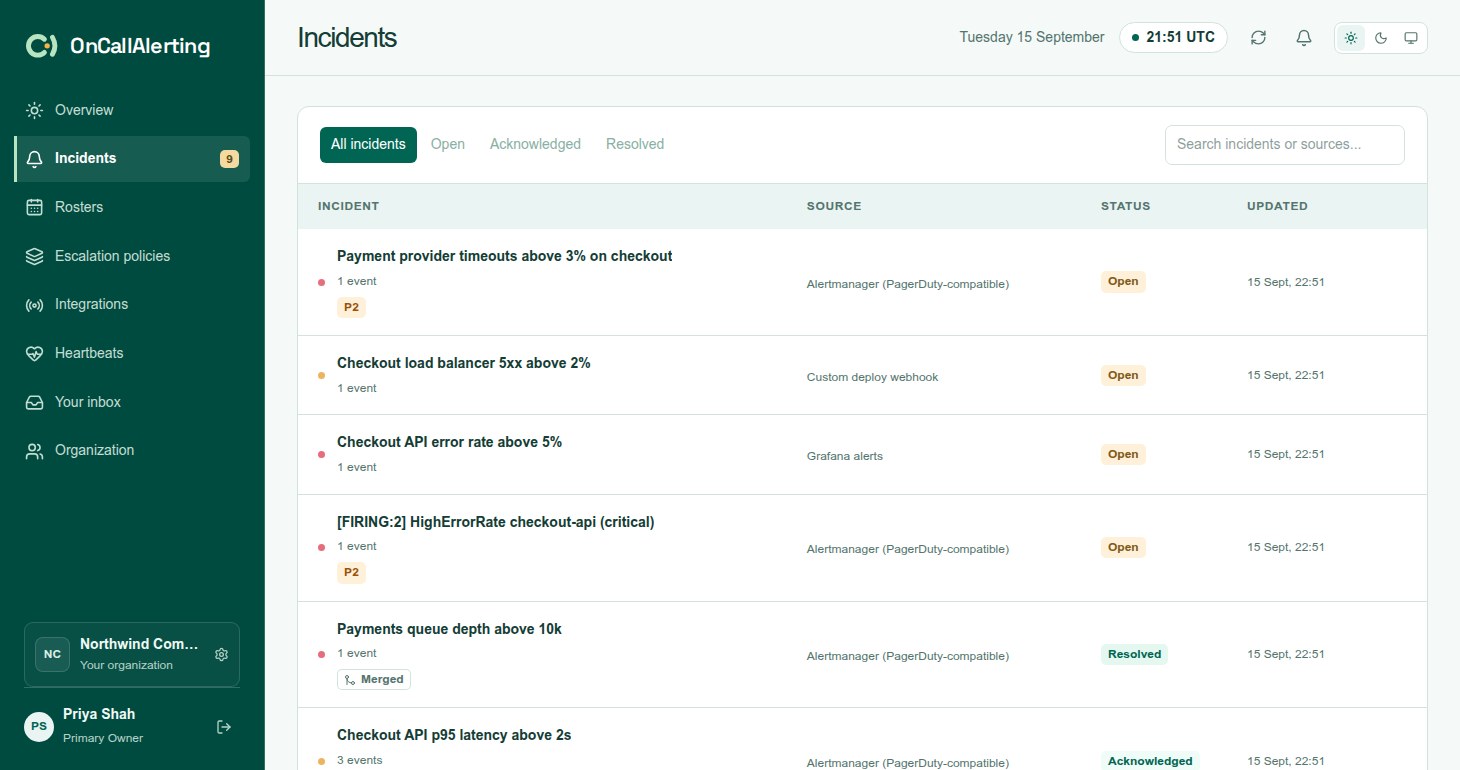
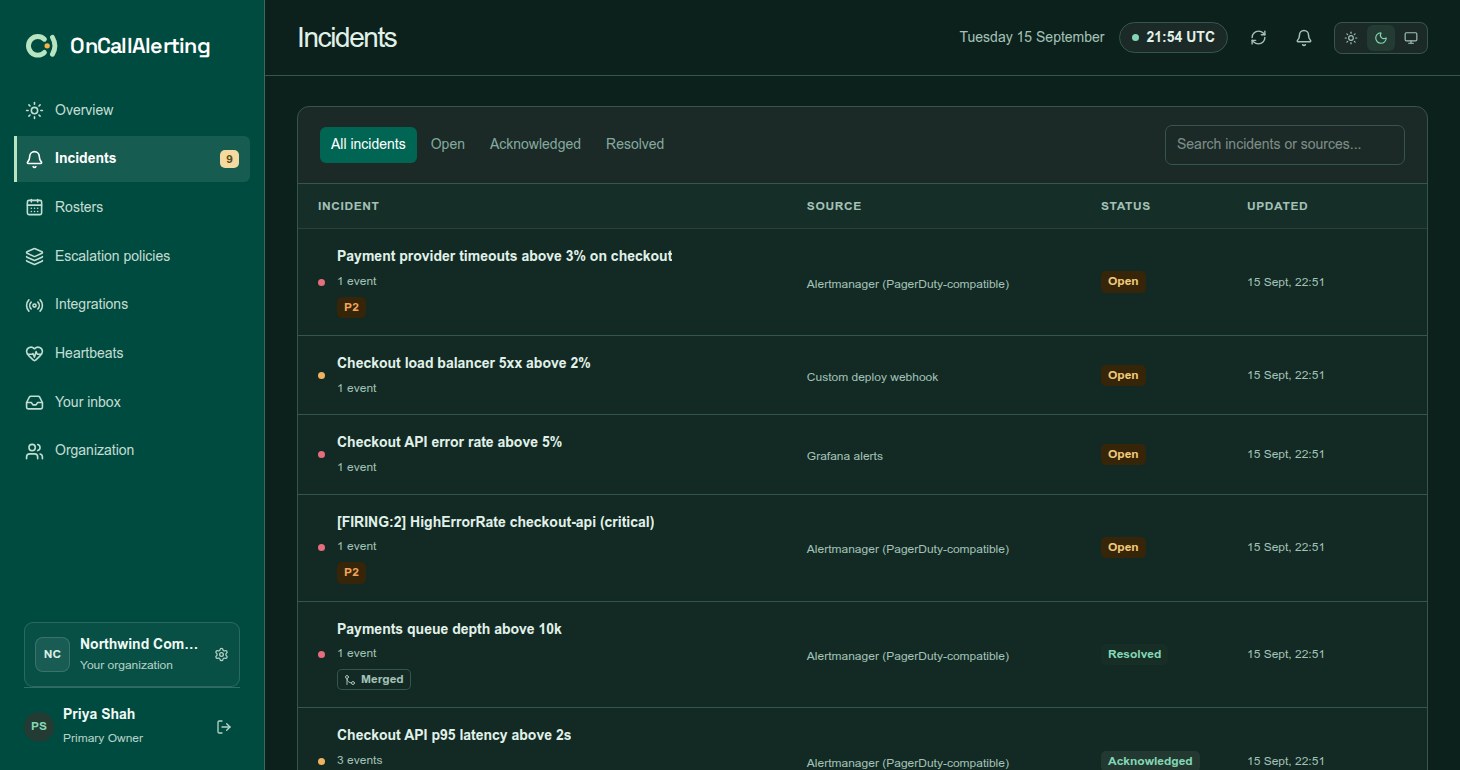
Incidents lists the organization's 500 most recent incidents, newest first. Filter by All incidents, Open, Acknowledged or Resolved, or search by title or source name. The number next to Incidents in the sidebar is the count of open incidents.
Badges show the priority, the assignee, "Snoozed until" for a snoozed incident, and "Merged" for an incident merged into another. The workspace refreshes every 15 seconds.
The incident page
Section titled "The incident page"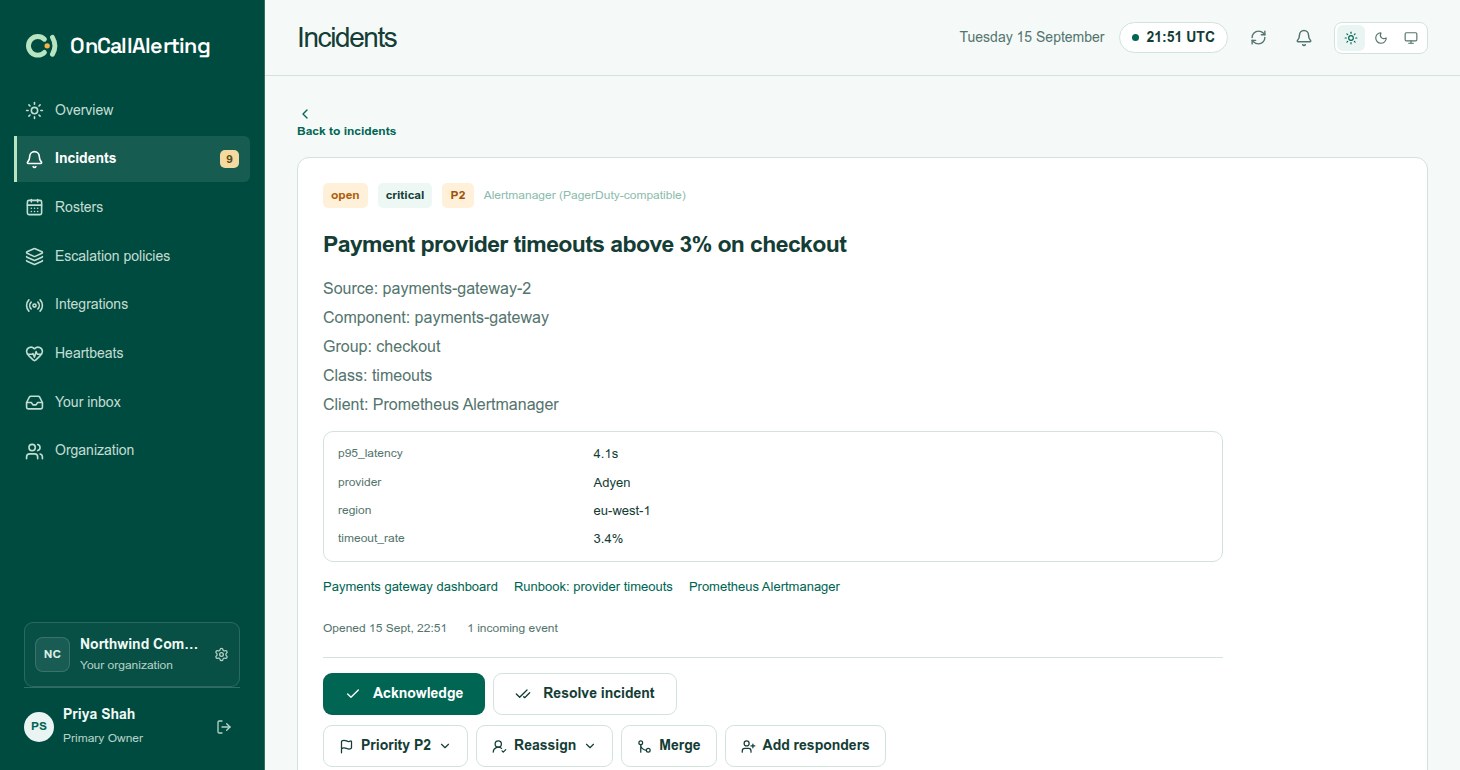
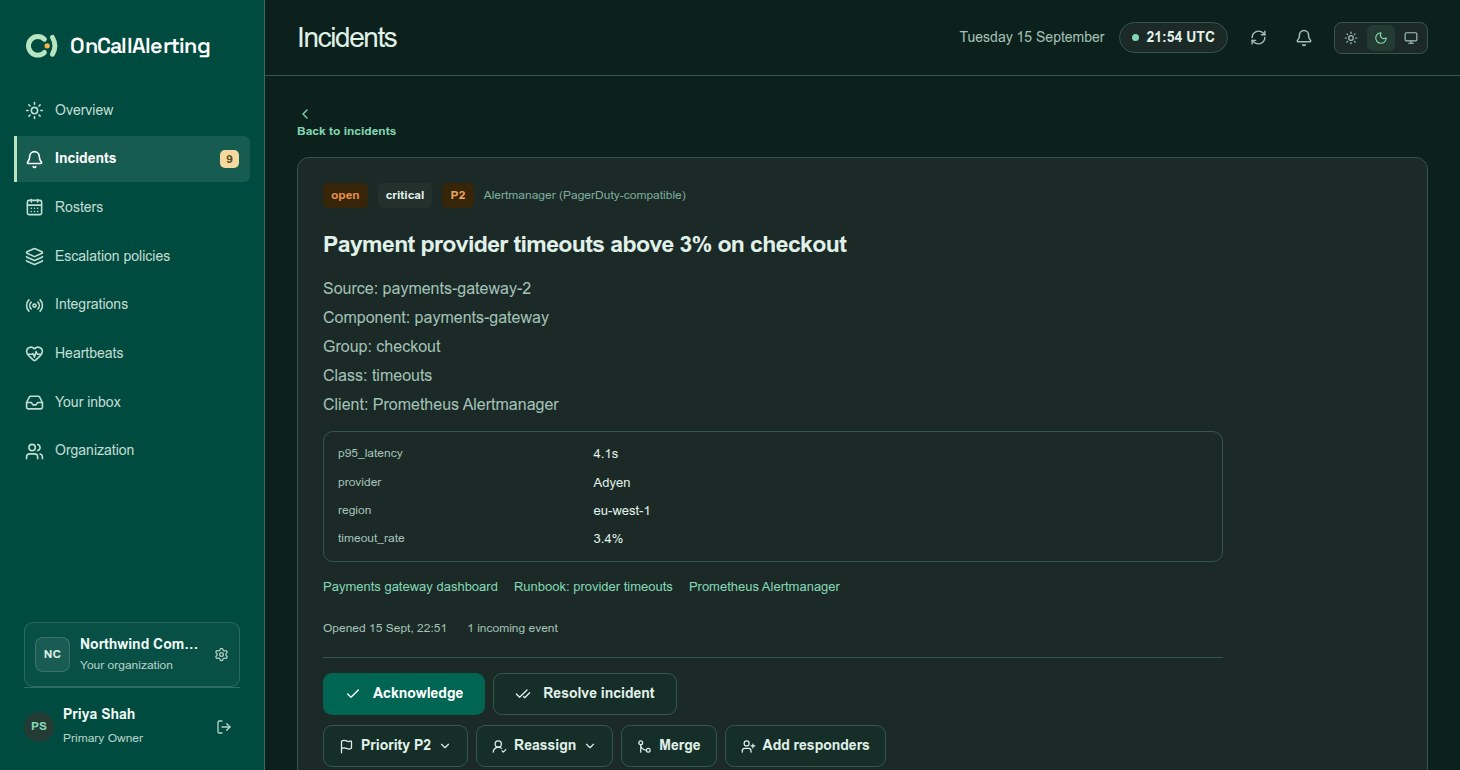
Select an incident to open it. The page shows:
- Status, severity, badges and the source name.
- The title and description from the alert.
- Details and links sent by the source, when there are any.
- When it opened and how many incoming events it has.
- The action row: Set priority, Reassign, Snooze (acknowledged only), Merge and Add responders, then Acknowledge and Resolve incident. See incident actions.
- Merged incidents, responders and notes.
- The Activity timeline and the Delivery log.
Slack notifications and outbound webhook payloads link to the incident at /workspace?incident= followed by its id.
Readable details
Section titled "Readable details"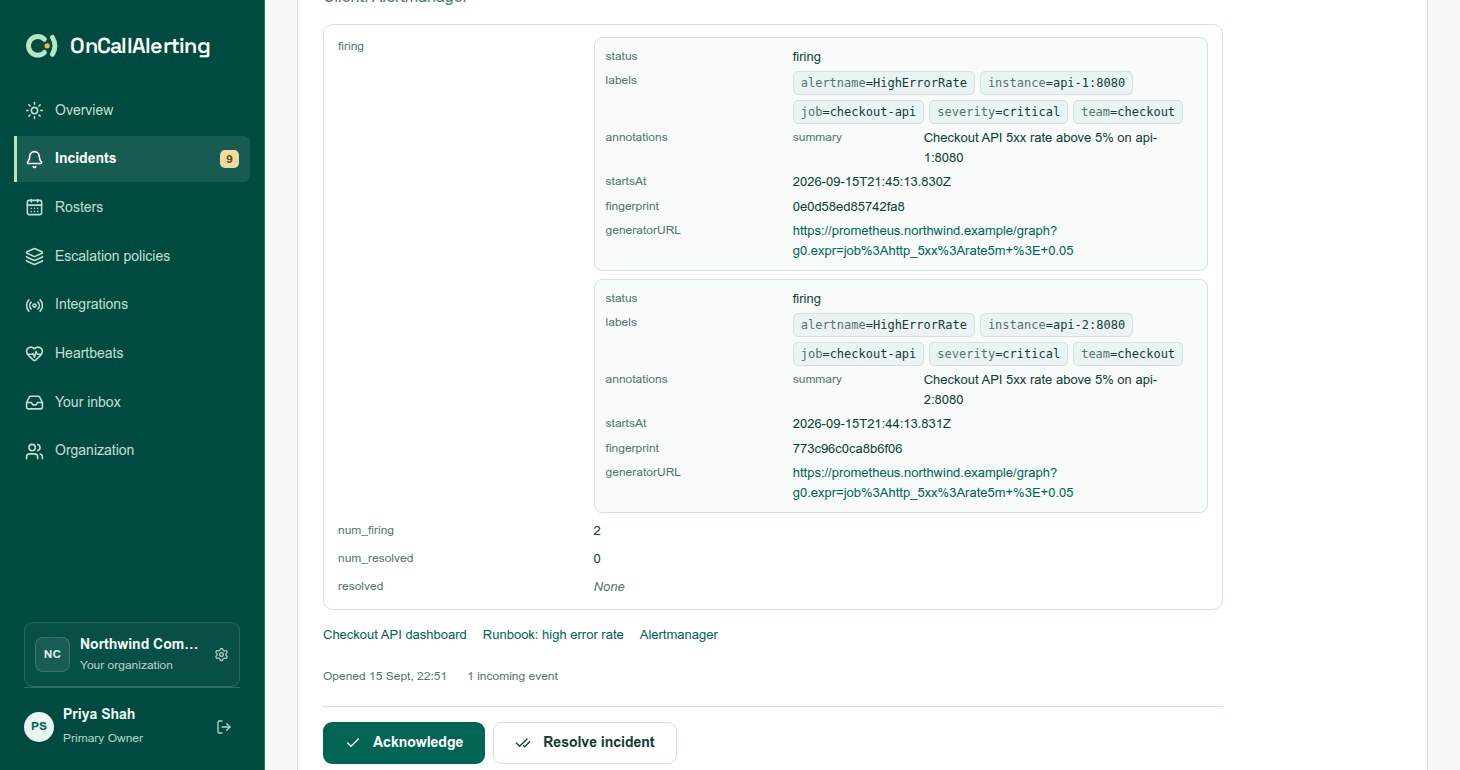
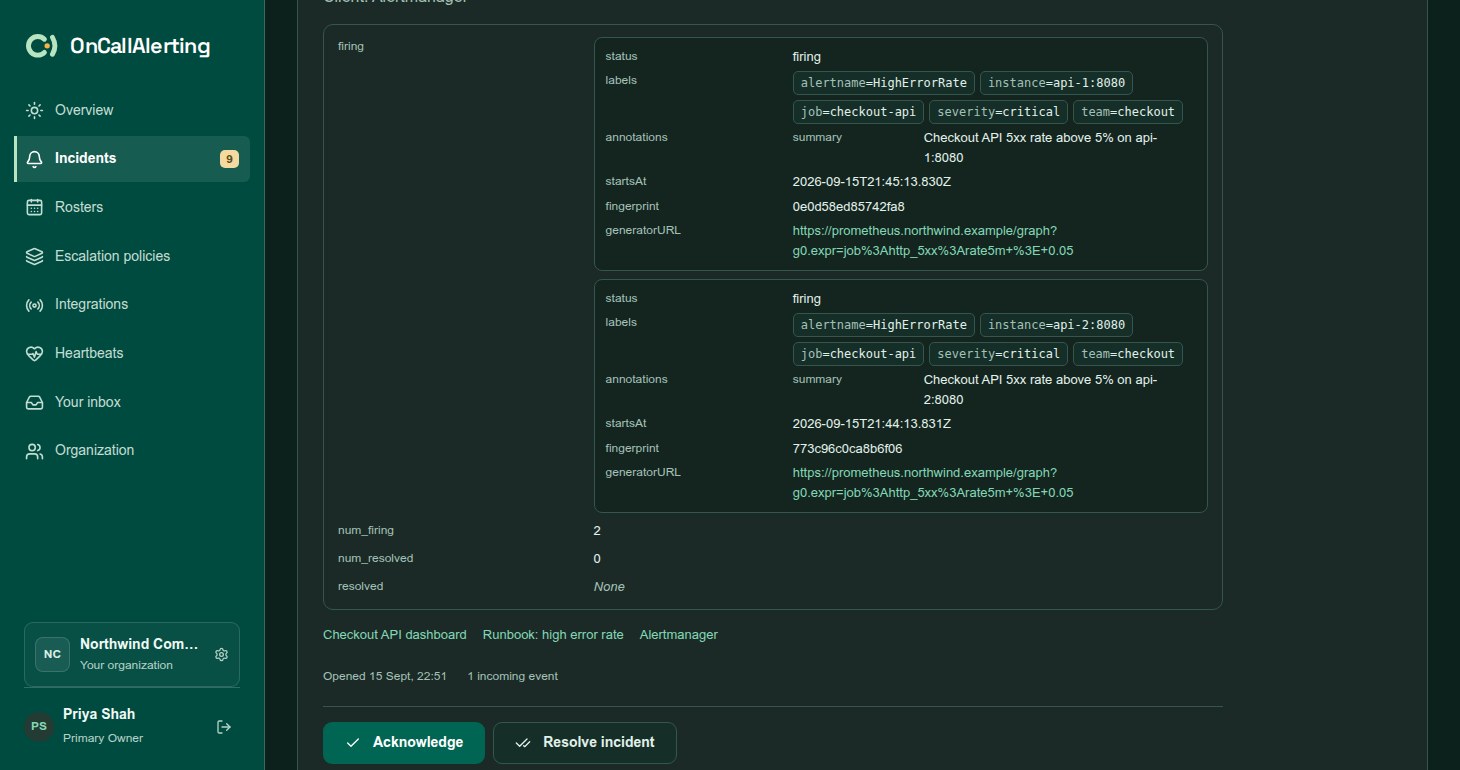
PagerDuty-compatible custom_details and Opsgenie details are kept as key and value pairs, up to 50. A value that is a JSON object or array is shown as fields and cards rather than raw JSON. Keys named labels, tags, commonLabels or groupLabels show as chips. Long lists show the first few entries and a Show more button.
Each stored value is limited to 2000 characters. A JSON value cut at that limit can no longer be read as JSON, so it is shown as text with a note.
Acknowledge
Section titled "Acknowledge"Select Acknowledge on an open incident. Any member of the organization can do this.
- Escalation stops. No later level is notified.
- Slack notifications still queued or waiting to retry for this incident are cancelled.
- The timeline records who acknowledged it.
An alert source can acknowledge too: a PagerDuty-compatible acknowledge event or an Opsgenie-compatible acknowledge call has the same effect.
An acknowledged incident stays acknowledged until someone resolves it, reassigns it, or a snooze ends.
Resolve
Section titled "Resolve"Select Resolve incident on an open or acknowledged incident.
- Escalation stops and any snooze ends.
- Pending Slack notifications are cancelled.
- A resolved incident cannot be reopened. The next alert with the same key opens a new incident.
Incidents also resolve when the monitoring tool sends a recovery with the same key, when a heartbeat pings again, when a policy resolves the incident after its last round, and when the incident is merged into another.
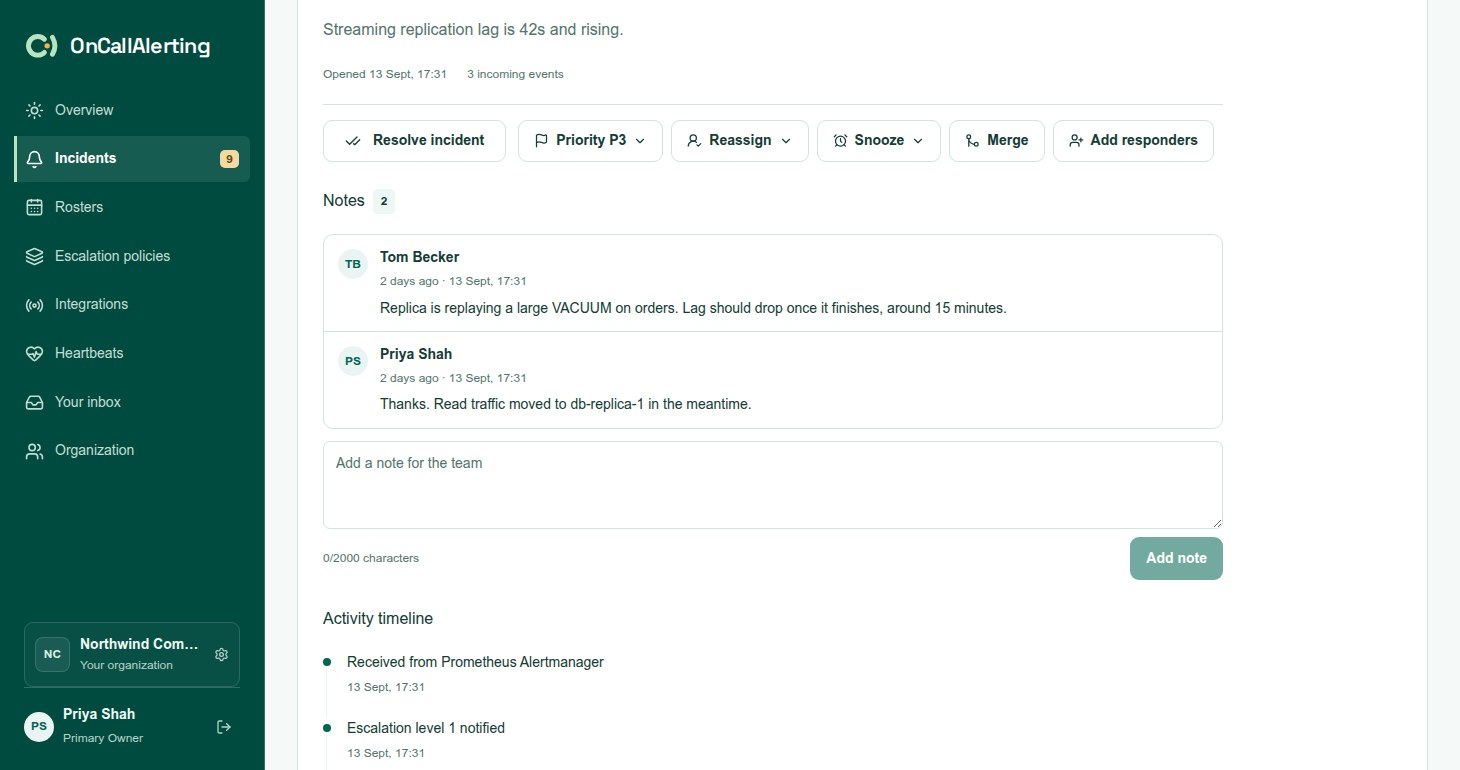
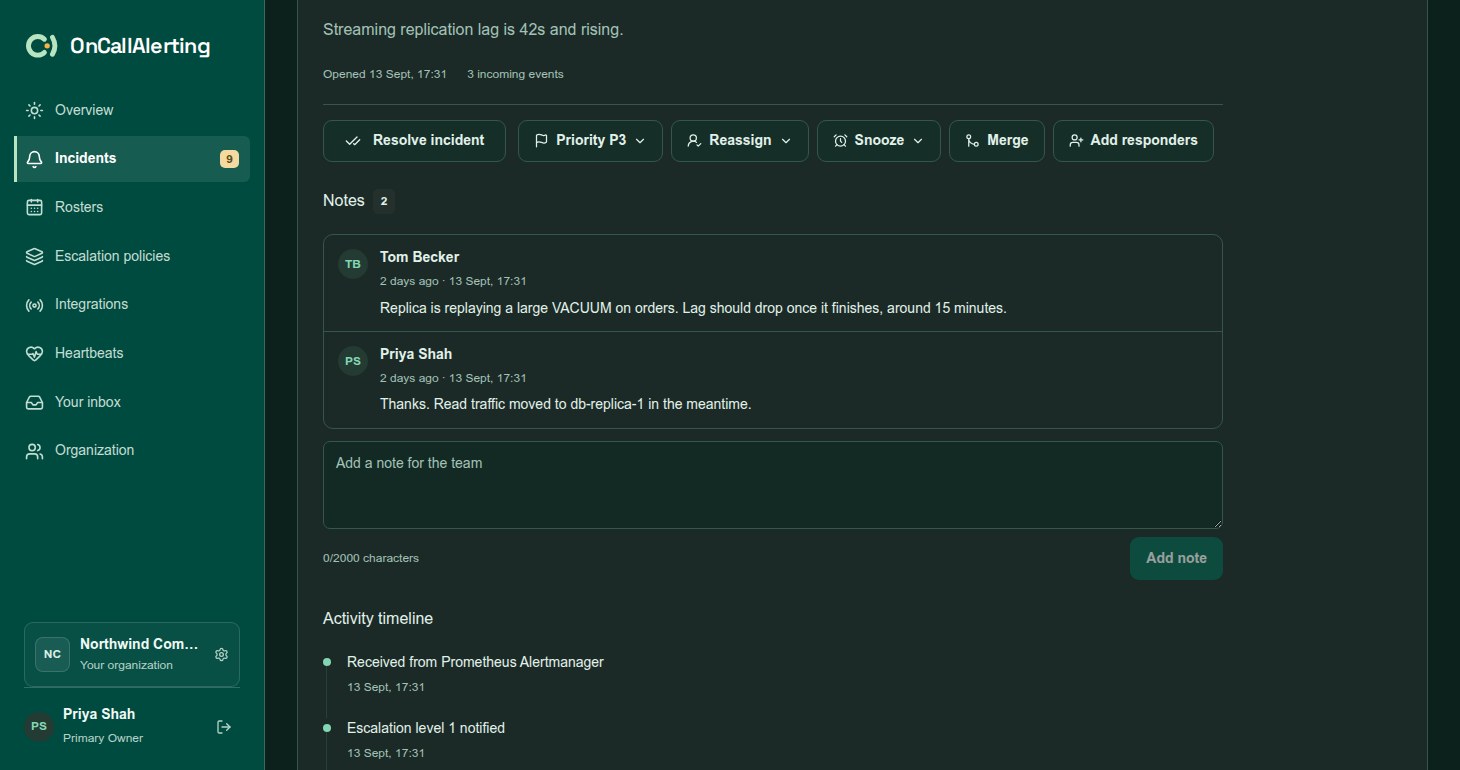
Write down what you tried, what you found and what happens next. Type in Add a note for the team and select Add note, or press Ctrl+Enter (Cmd+Enter on a Mac).
- A note is 1-2000 characters. An incident holds up to 100 notes.
- Each note shows its author and time, and also appears in the activity timeline.
- Notes cannot be edited or deleted.
- Notes can be added to resolved incidents too.
Activity timeline
Section titled "Activity timeline"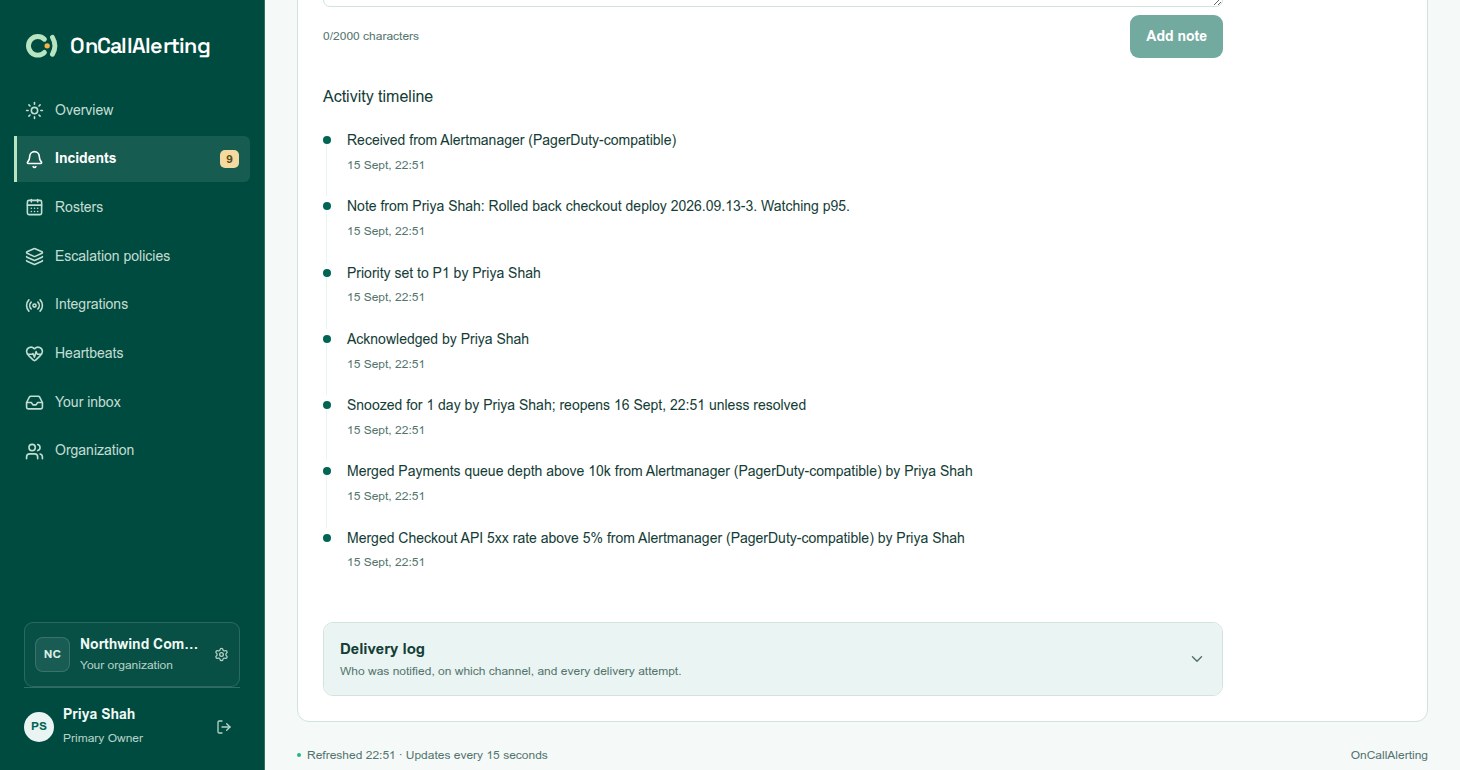
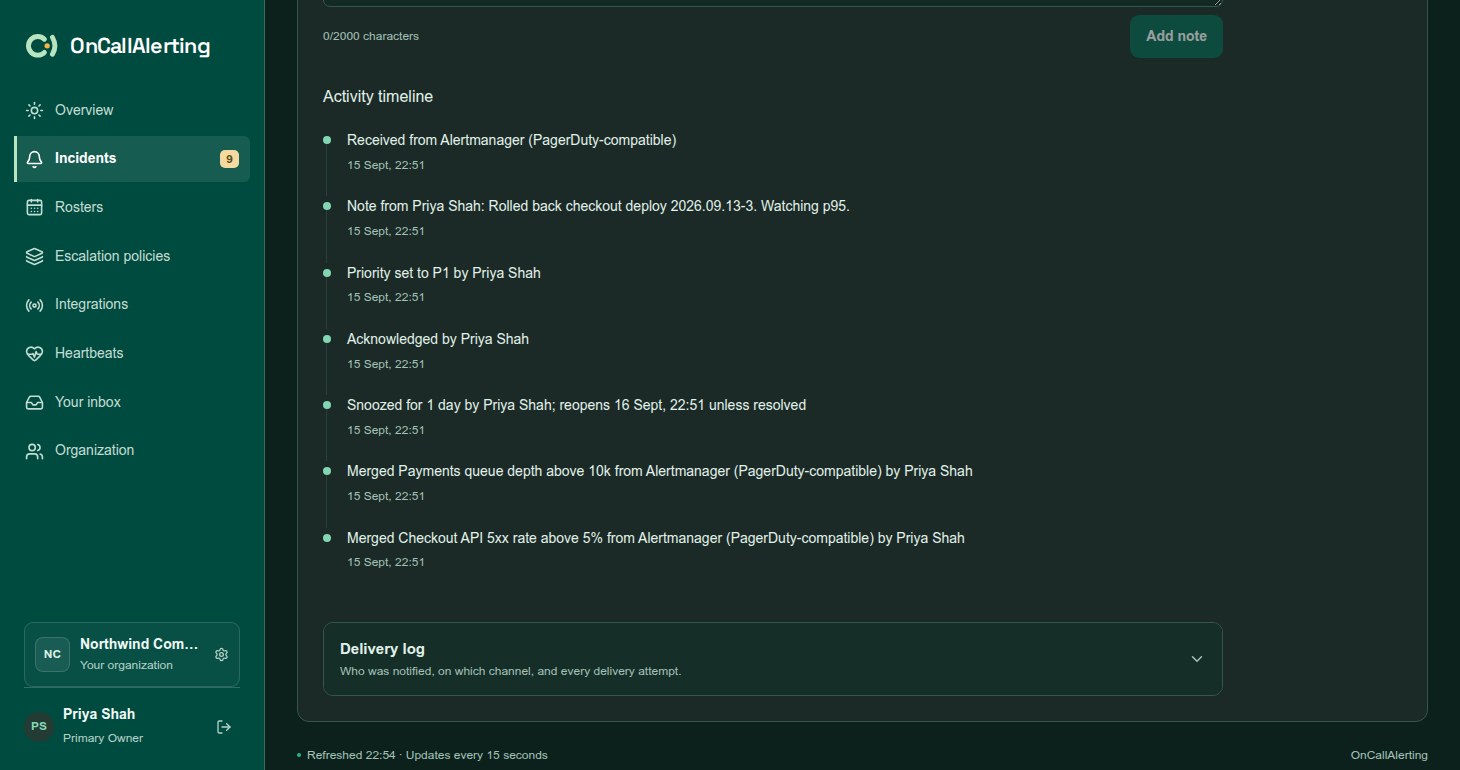
The timeline records everything that happened to the incident, oldest first. For example:
- "Received from" the source name, when it opened.
- "Escalation level 1 notified", and what happens after the last level.
- "Coverage gap: notified the primary organization owner", when a level found nobody on call.
- "Acknowledged by" a person, or by an alert source.
- Priority changes, reassignments, snoozes, merges, responders and notes.
- "Change from" a source, for change events on the same escalation policy.
- A Slack delivery that failed after its last attempt.
An incident keeps its 500 most recent timeline entries.