

Members and roles
Everything in OnCallAlerting belongs to one organization: people, rosters, escalation policies, alert sources, heartbeats, incidents and webhooks. The person who signs up creates the organization and becomes its primary owner.
Each account belongs to one organization, and an email address can hold only one account.
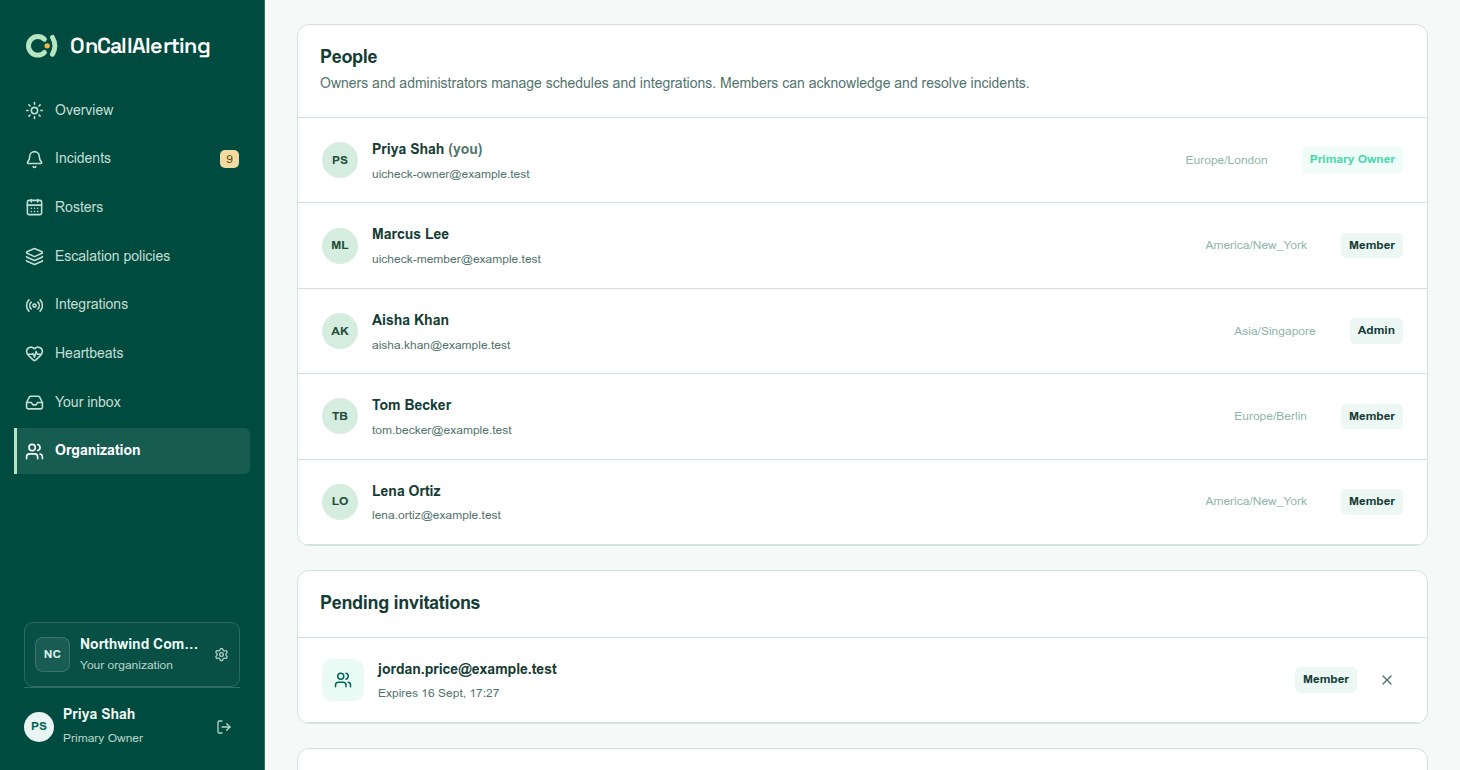
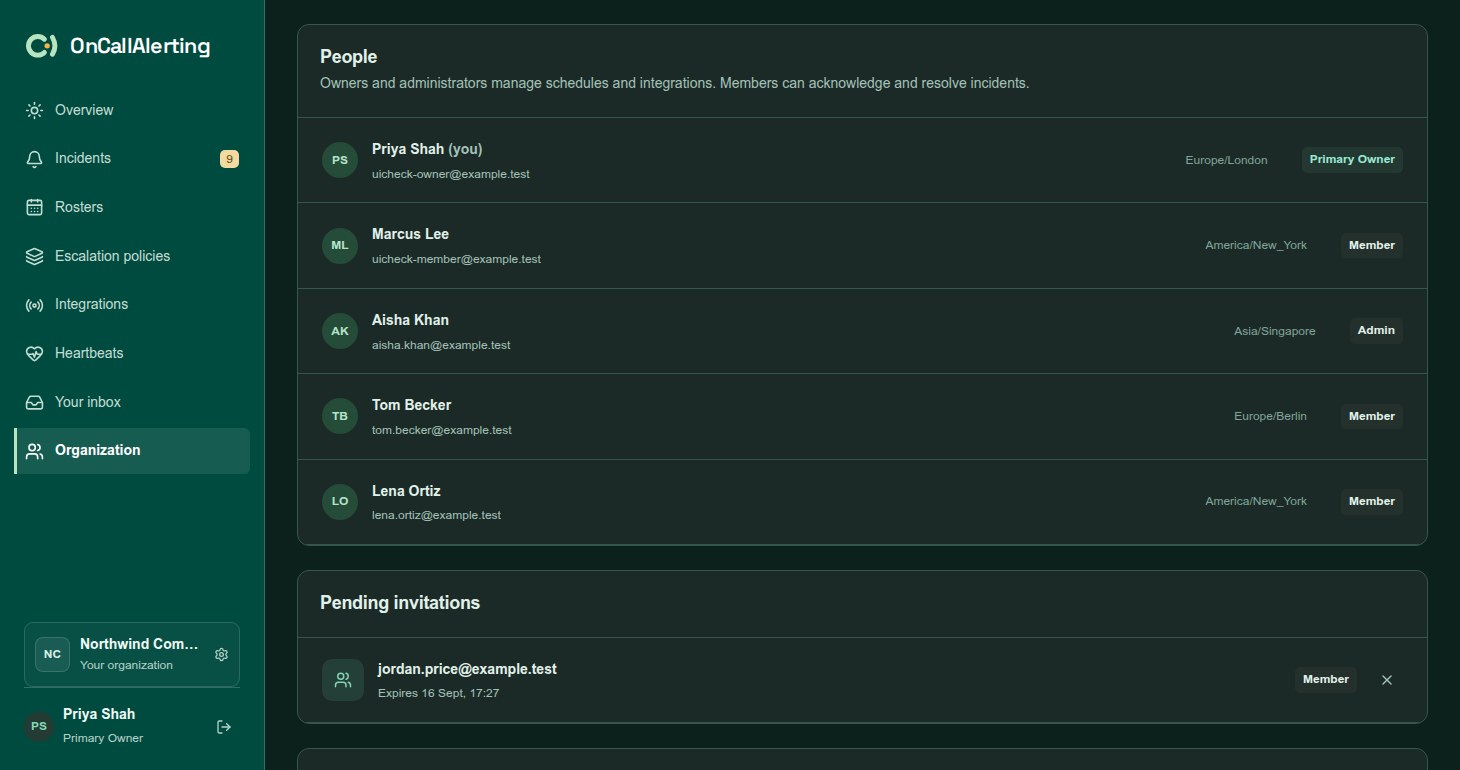
Organization shows the organization name, the primary owner, the people with their email, timezone and role, and pending invitations.
| Role | Shown as | Who |
|---|---|---|
| Owner | Primary owner | The person who created the organization |
| Administrator | admin | Invited as an administrator |
| Member | member | Invited as a member |
| Can | Primary owner | Administrator | Member |
|---|---|---|---|
| See rosters, policies, sources, heartbeats and incidents | Yes | Yes | Yes |
| Acknowledge and resolve incidents | Yes | Yes | Yes |
| Notes, priority, reassign, snooze, merge, responders | Yes | Yes | Yes |
| Read an incident's delivery log | Yes | Yes | Yes |
| Create and edit rosters and substitutions | Yes | Yes | No |
| Create and edit escalation policies | Yes | Yes | No |
| Connect sources, send test alerts, rotate keys | Yes | Yes | No |
| Create and edit heartbeats | Yes | Yes | No |
| Connect Slack | Yes | Yes | No |
| Manage outbound webhooks | Yes | Yes | No |
| Invite teammates and revoke invitations | Yes | Yes | No |
| Receive the page when a level finds nobody on call | Yes | No | No |
In Your inbox, everyone sees the notifications addressed to them.
Invite a teammate
Section titled "Invite a teammate"- Open Organization and select Invite teammate.
- Enter the Teammate's email and choose the Organization role: Member: view, acknowledge, resolve or Administrator: manage workspace.
- Select Create invitation.
- Copy the link from Invitation ready to share and send it to your teammate yourself.
- OnCallAlerting does not send the invitation by email.
- The link works once and expires after 72 hours.
- Someone already in the organization cannot be invited again.
- Invitations are for administrators and members. The primary owner is created at signup.
- Revoke a pending invitation with the cross next to it under Pending invitations.
Your teammate opens the link, sees Join your team, enters Your name, a Password of 12-72 characters and Your timezone, and selects Accept invitation. The email address comes from the invitation.
Pending invitations cannot be added to rosters until they are accepted.
Signing in
Section titled "Signing in"Sign in at oncallalerting.com/workspace with your email and password. A session lasts 7 days. Sign-in, signup and accepting an invitation are limited to 10 attempts a minute from one address.