

Alert sources
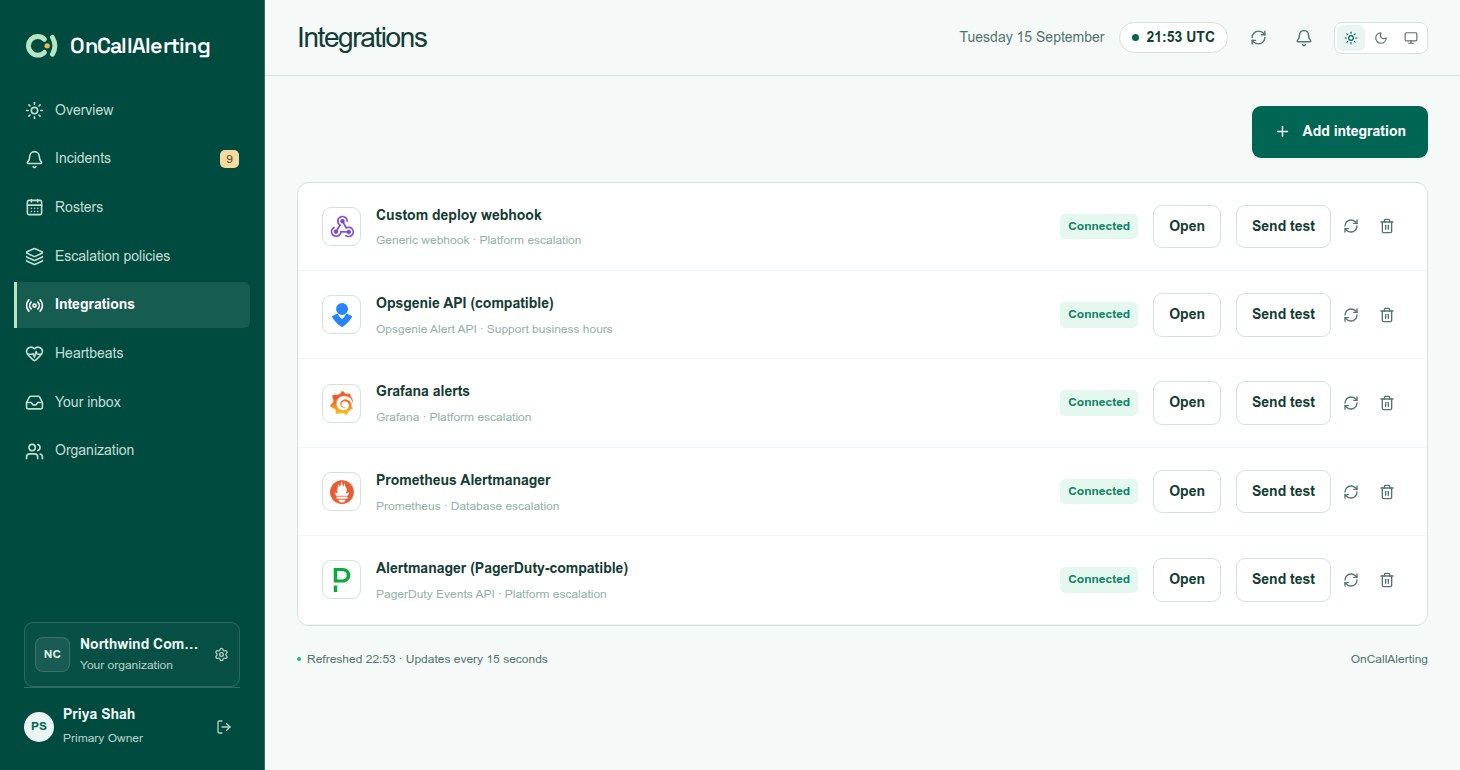
An alert source is where alerts come in. In the workspace, alert sources are listed under Integrations. Each source has its own secret and one escalation policy. Connect one source per tool or per environment, for example "Production Alertmanager" and "Staging Alertmanager", so each can follow a different policy.
Owners and administrators connect and manage sources. Members can see them.
Kinds of source
Section titled "Kinds of source"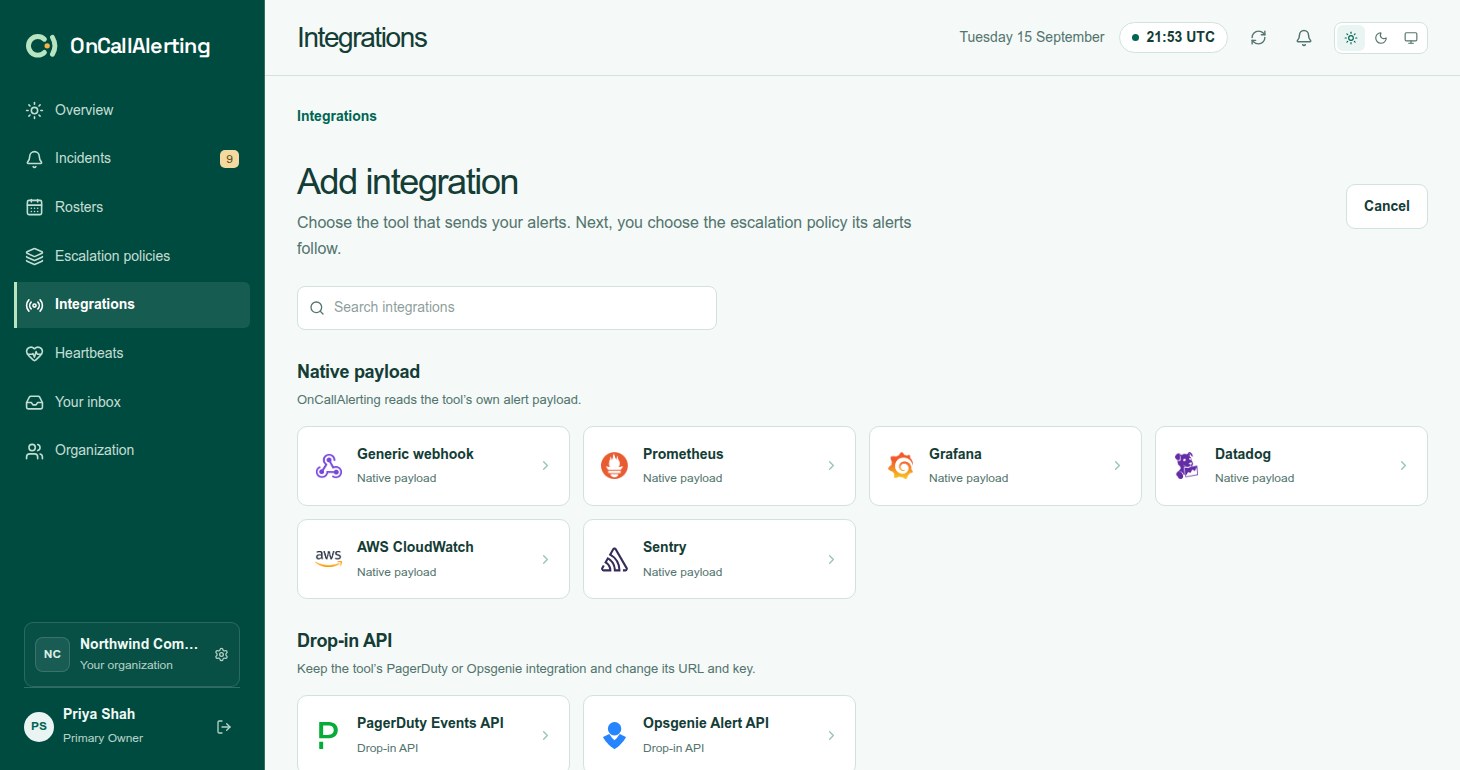
Add integration groups every tool by how its alerts arrive:
| Label | Sources | How alerts arrive |
|---|---|---|
| Native payload | Prometheus, Grafana, Datadog, AWS CloudWatch, Sentry, Generic webhook | A secret webhook URL. OnCallAlerting reads each tool's own payload. See native webhooks. |
| Drop-in API | PagerDuty Events API, Opsgenie Alert API | An integration key and URL. Tools keep their PagerDuty or Opsgenie integration. See PagerDuty-compatible and Opsgenie-compatible. |
| Generic JSON webhook | Zabbix, Nagios, Icinga, Checkmk, New Relic, Azure Monitor, Google Cloud, Splunk, Dynatrace, GitHub Actions, GitLab CI, Jenkins, Pingdom, UptimeRobot, StatusCake, Site24x7, Bugsnag, Rollbar, Honeybadger, PRTG, ElastAlert | A secret webhook URL. OnCallAlerting has no parser for these tools. Configure the tool to send the generic JSON format. |
Connect a source
Section titled "Connect a source"- Open Integrations and select Add integration.
- Choose your tool. Search by name, or pick it from its group.
- On Connect followed by the tool's name, enter a Name and choose the Escalation policy.
- Optionally fill in Configuration. These fields are notes for your team, such as the receiver name or region. OnCallAlerting saves them and shows them on the source, but does not filter or route alerts by them.
- Select Add integration.
- Copy the secret. A webhook source shows a Secret link. A PagerDuty- or Opsgenie-compatible source shows the key and the URL. It is shown only once, with a setup example for the tool.
Treat the webhook URL or key like a password. If you lose it, rotate it.
Work with a source
Section titled "Work with a source"Each row on the Integrations page has:
- Open: the source's tabs.
- Configuration: the notes you saved.
- Examples: setup examples for the tool. They use a placeholder, because the secret is not shown again.
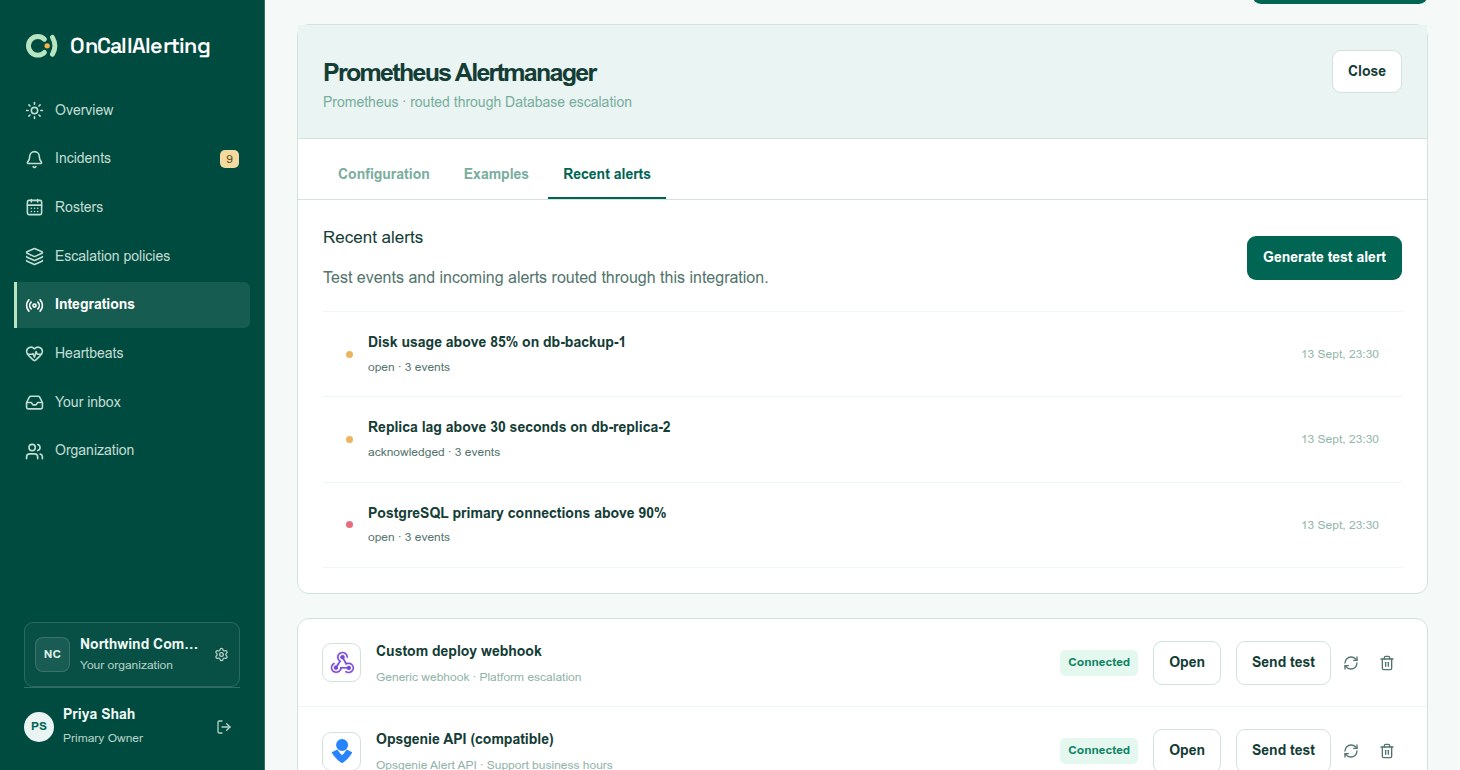
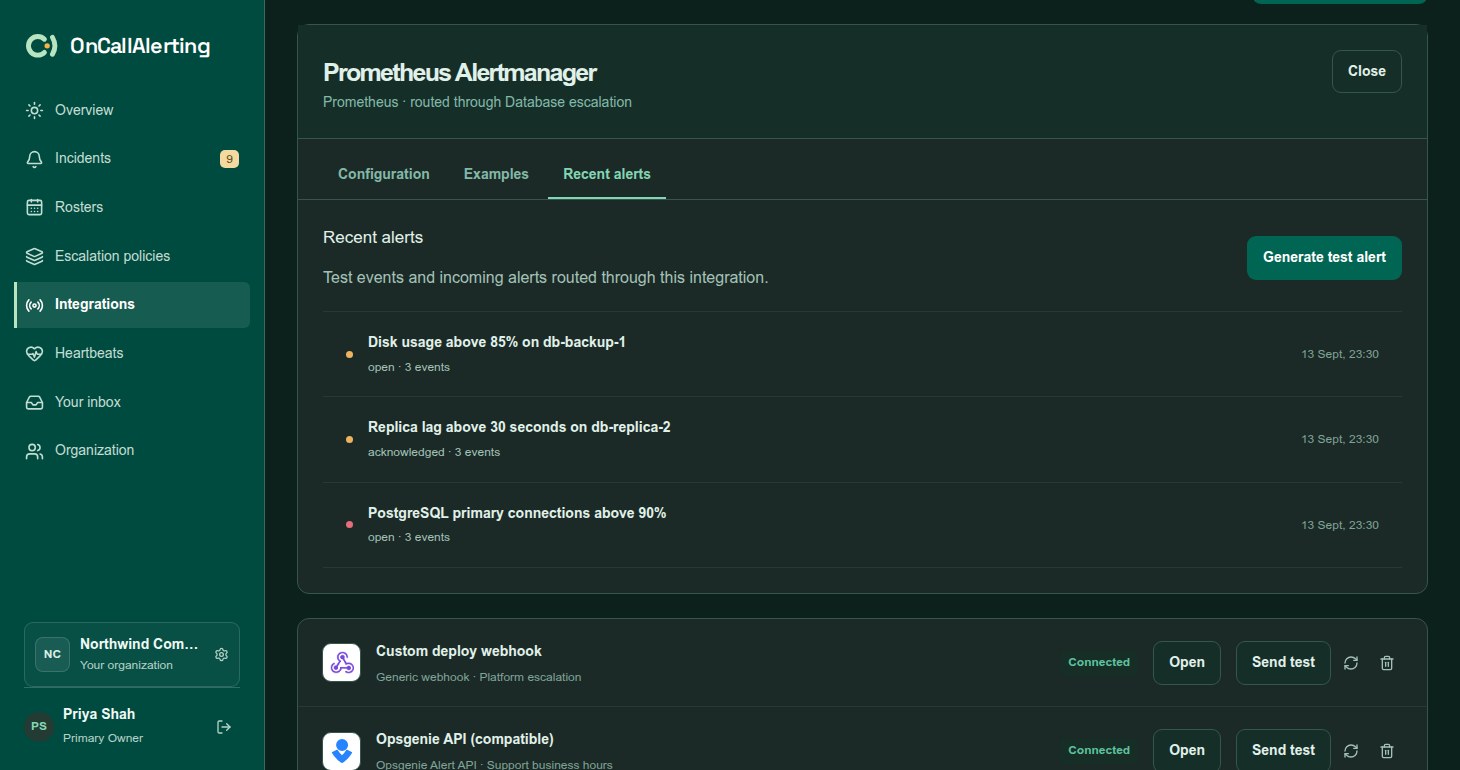
- Recent alerts: the 10 most recent incidents from this source, Generate test alert, and recent change events.
- Send test: opens a test incident.
- The rotate button: replaces the webhook URL or integration key. The old one stops working straight away.
- The bin: deletes the source. Incidents it already opened stay as they are.
Test alerts
Section titled "Test alerts"Send test and Generate test alert open a real incident on the source's escalation policy:
- Title "Test alert from" followed by the source name
- Severity warning
- A new deduplication key each time, so every test opens its own incident
Level 1 is notified straight away and escalation runs as it would for a real alert. Acknowledge or resolve the test incident to stop it.
Deduplication and recovery
Section titled "Deduplication and recovery"Every alert has a deduplication key, per source. An alert whose key matches an open or acknowledged incident adds an occurrence and notifies nobody. A recovery with the same key resolves the incident. An acknowledgement or recovery that matches nothing is ignored and never opens an incident. See working with incidents.
Change events
Section titled "Change events"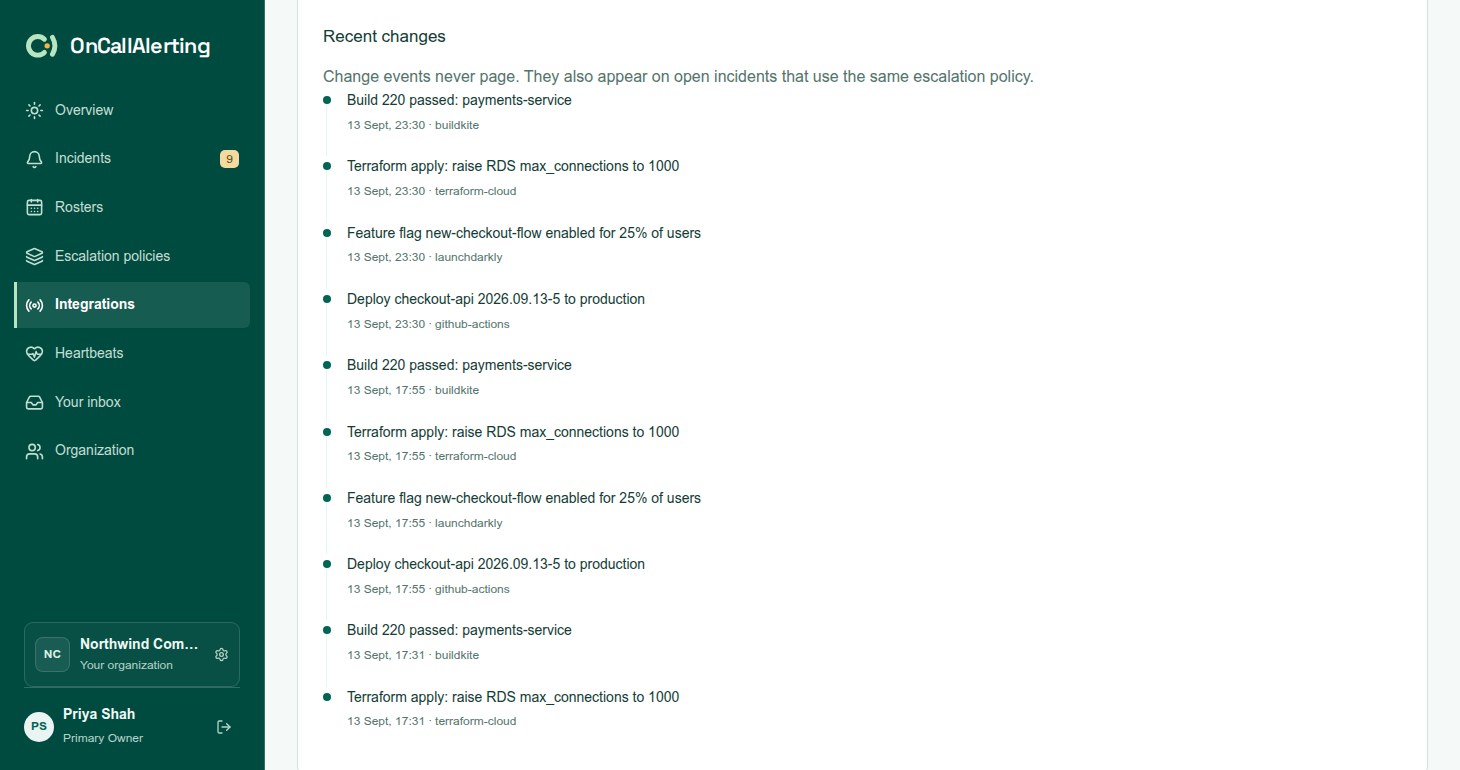
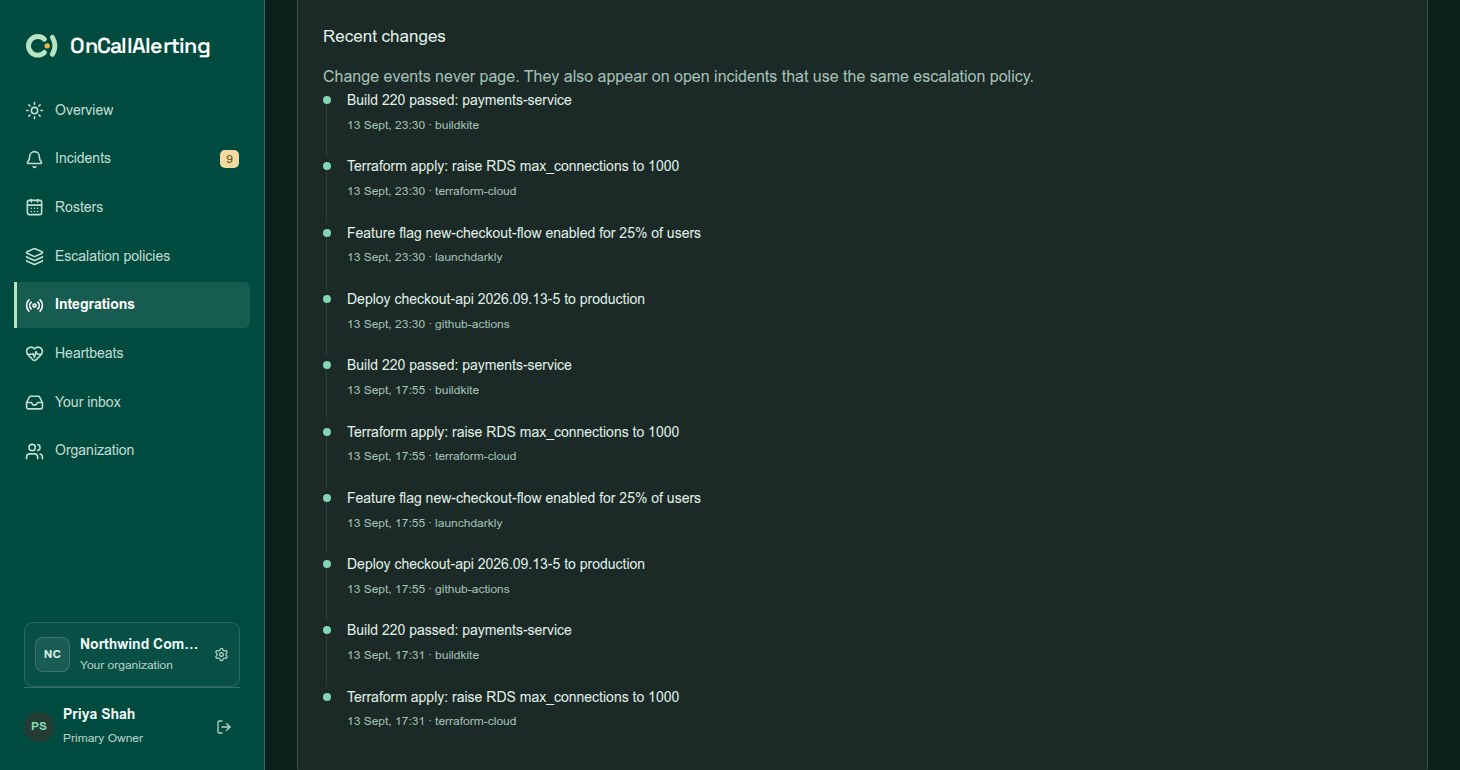
A PagerDuty-compatible source also accepts change events, such as deploys. Change events never page. They appear under Recent changes on the source's Recent alerts tab, and are added to the timeline of open and acknowledged incidents that use the same escalation policy. They are kept for 90 days. See PagerDuty-compatible change events.
Limits
Section titled "Limits"- 240 alerts per minute per source, across the webhook and the compatible APIs. Beyond that, requests get 429 (403 on PagerDuty Events API v1).
- Webhook bodies up to 1 MB. PagerDuty- and Opsgenie-compatible bodies up to 512 KB.
See limits for every field limit.