

Incident actions
Beyond acknowledge and resolve, an incident has five actions. Any member of the organization can take them. The buttons sit in the action row on the incident page. A button is hidden when the incident's status does not allow the action.
At a glance
Section titled "At a glance"| Action | Allowed when | Notifies now | Effect on escalation |
|---|---|---|---|
| Set priority | Any status | Nobody | None |
| Reassign | Open or acknowledged | The new assignee | Reopens the incident and restarts escalation at level 1 after level 1's wait |
| Snooze | Acknowledged | Nobody | When the snooze ends, reopens the incident and restarts escalation at level 1 straight away |
| Merge | Open or acknowledged, into an open or acknowledged incident | Nobody | Stops escalation on the merged incidents. The incident that stays open carries on unchanged. |
| Add responders | Open or acknowledged | The people asked | None |
Each action adds an entry to the activity timeline and sends an outbound webhook event.
Set priority
Section titled "Set priority"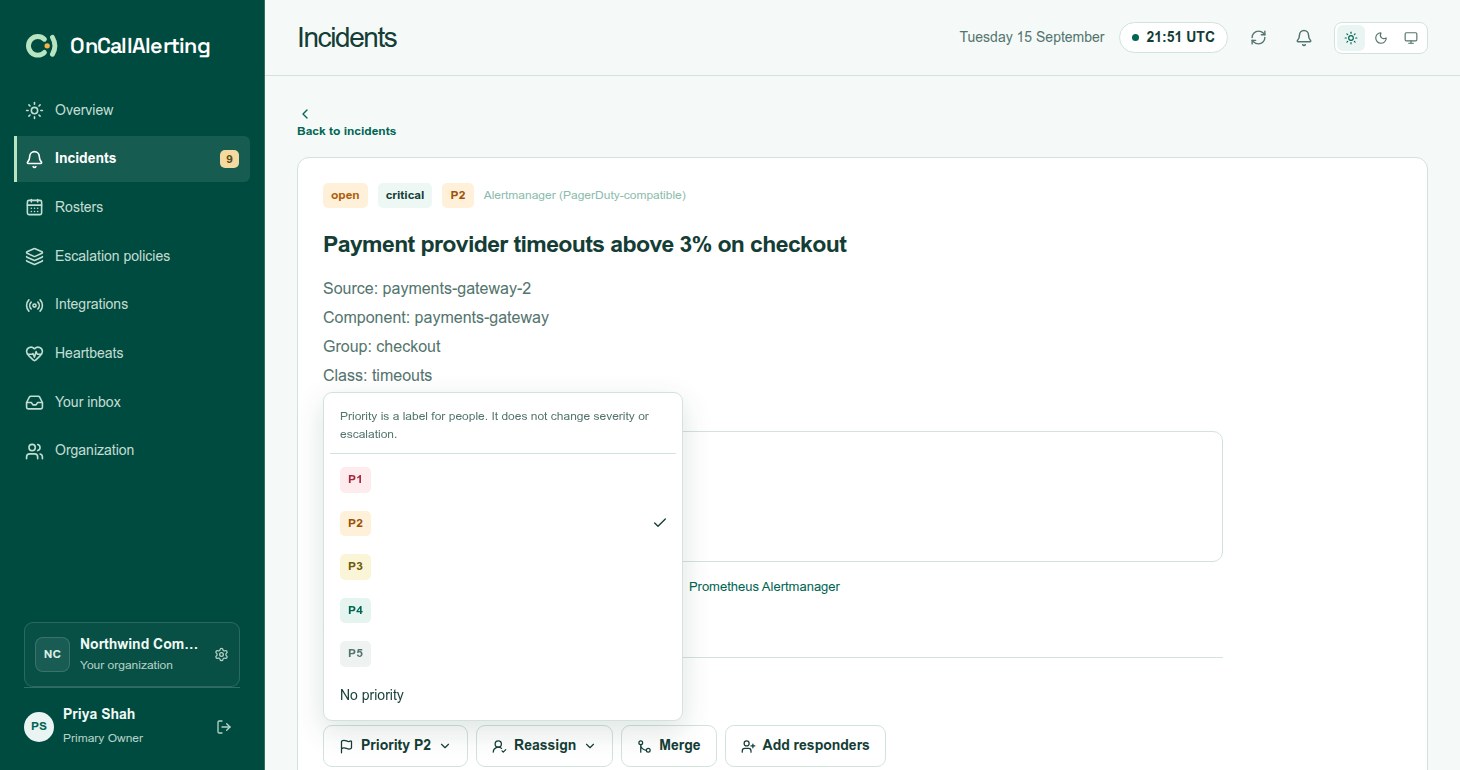
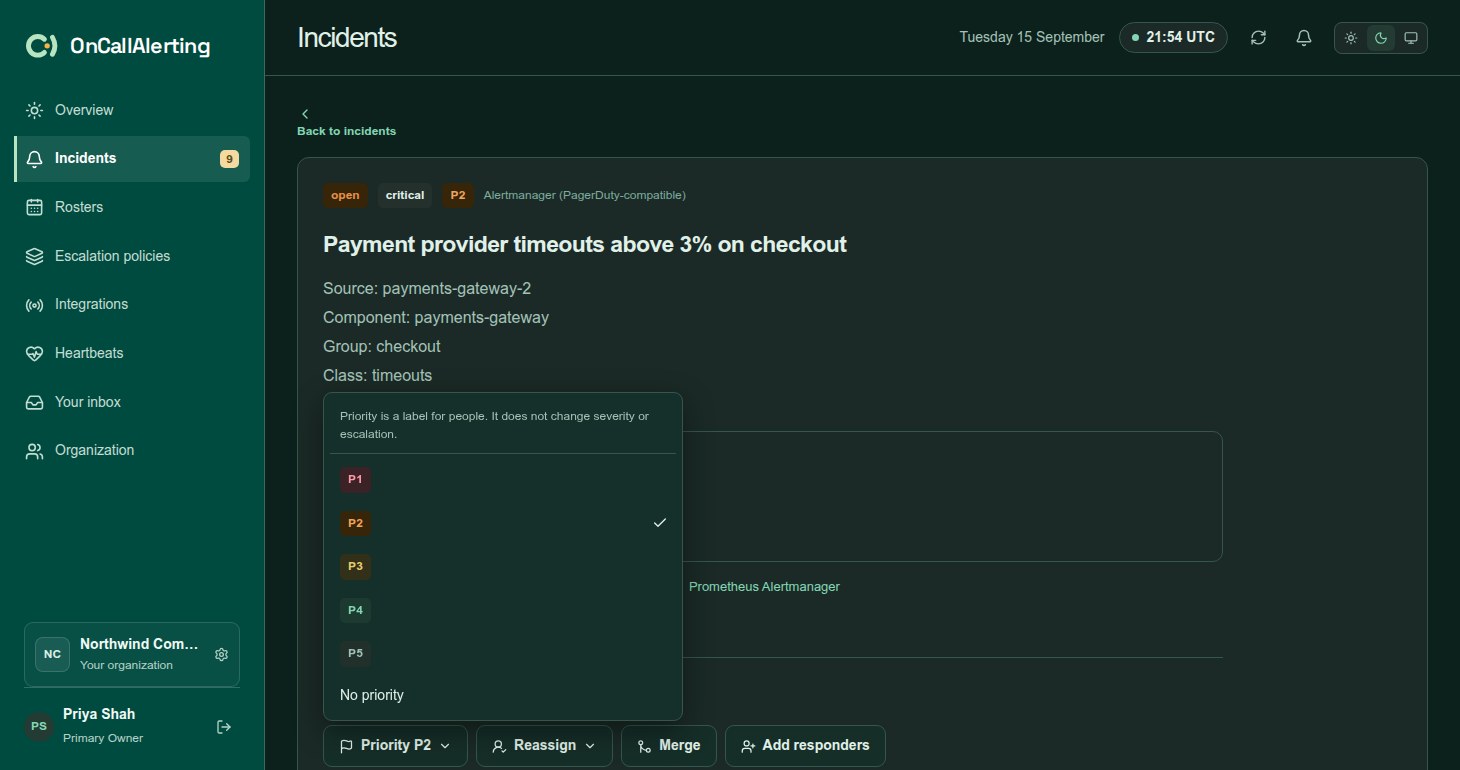
Select Set priority and choose P1-P5, or No priority to clear it.
- Priority is a label for people. It does not change severity, escalation or who is notified.
- It works on resolved incidents too.
- The timeline records "Priority set to P2 by" the person, or "Priority cleared by" them.
An Opsgenie-compatible alert that sets priority also sets the incident's priority when it opens. See Opsgenie-compatible intake.
Reassign
Section titled "Reassign"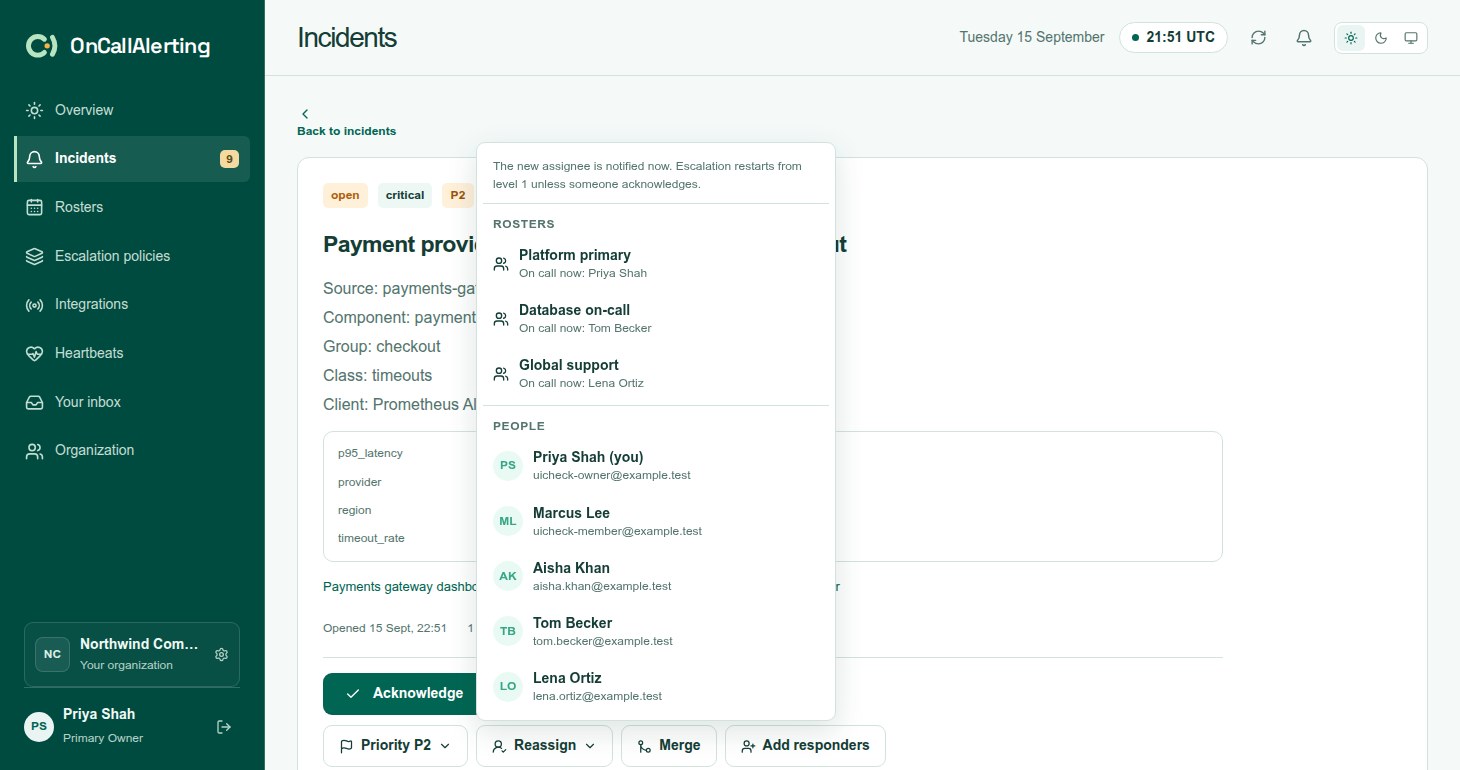
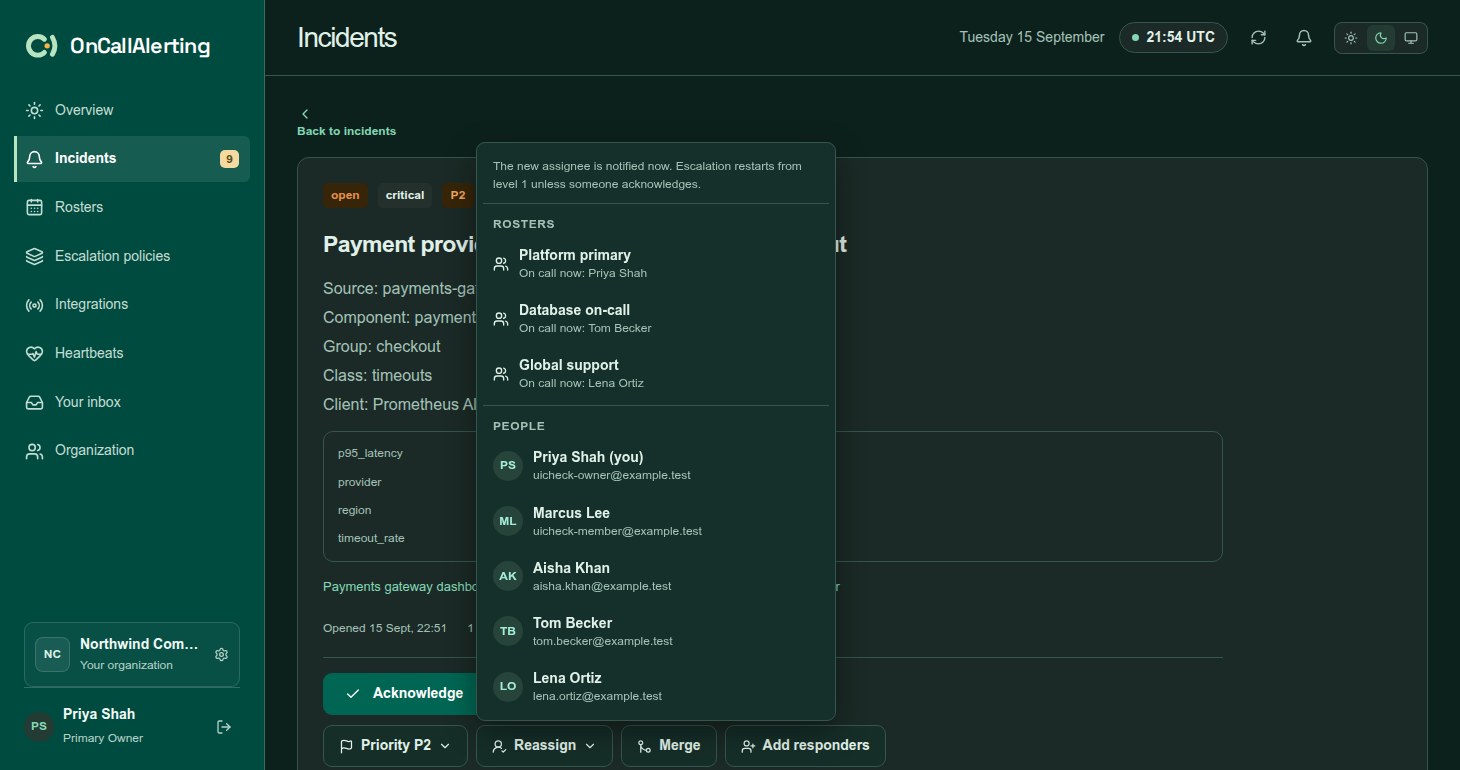
Select Reassign and choose a roster or a person. Rosters show who is on call now.
What happens, in one step:
- The assignee is notified now, in the app and on the channel of the policy's level 1. A roster notifies whoever is on call now. For a follow-the-sun roster that is the awake shift when the follow-the-sun rule applies. When a roster has nobody on call, the primary owner is notified instead.
- Pending Slack notifications for the previous people are cancelled.
- The incident is open again. If it was acknowledged, the acknowledgement is cleared. Any snooze ends.
- Escalation restarts at level 1 once level 1's wait passes without an acknowledgement.
The timeline reads, for example: "Reassigned to Jamie by Alex. Escalation restarts at level 1 in 5 minutes unless acknowledged."
A resolved incident cannot be reassigned.
Snooze
Section titled "Snooze"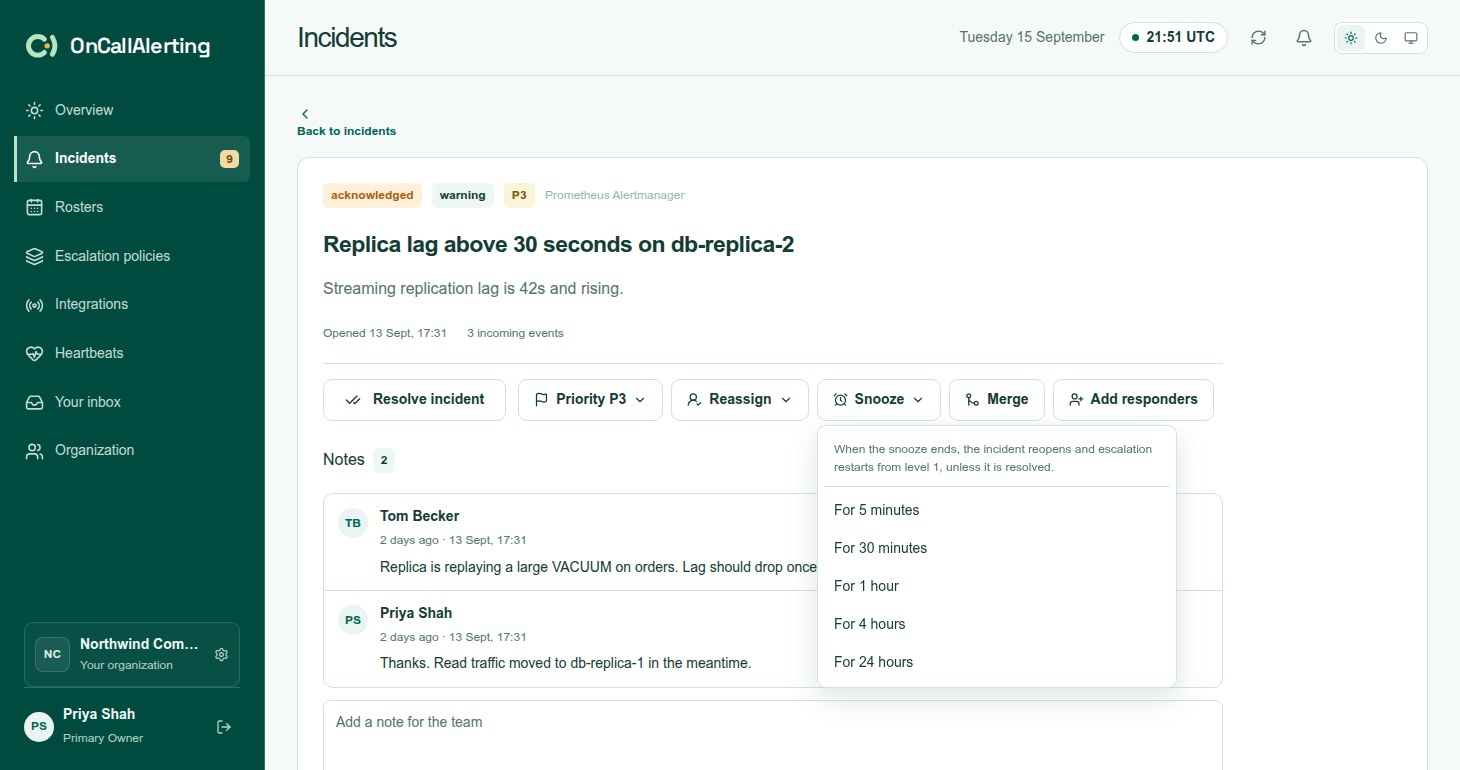
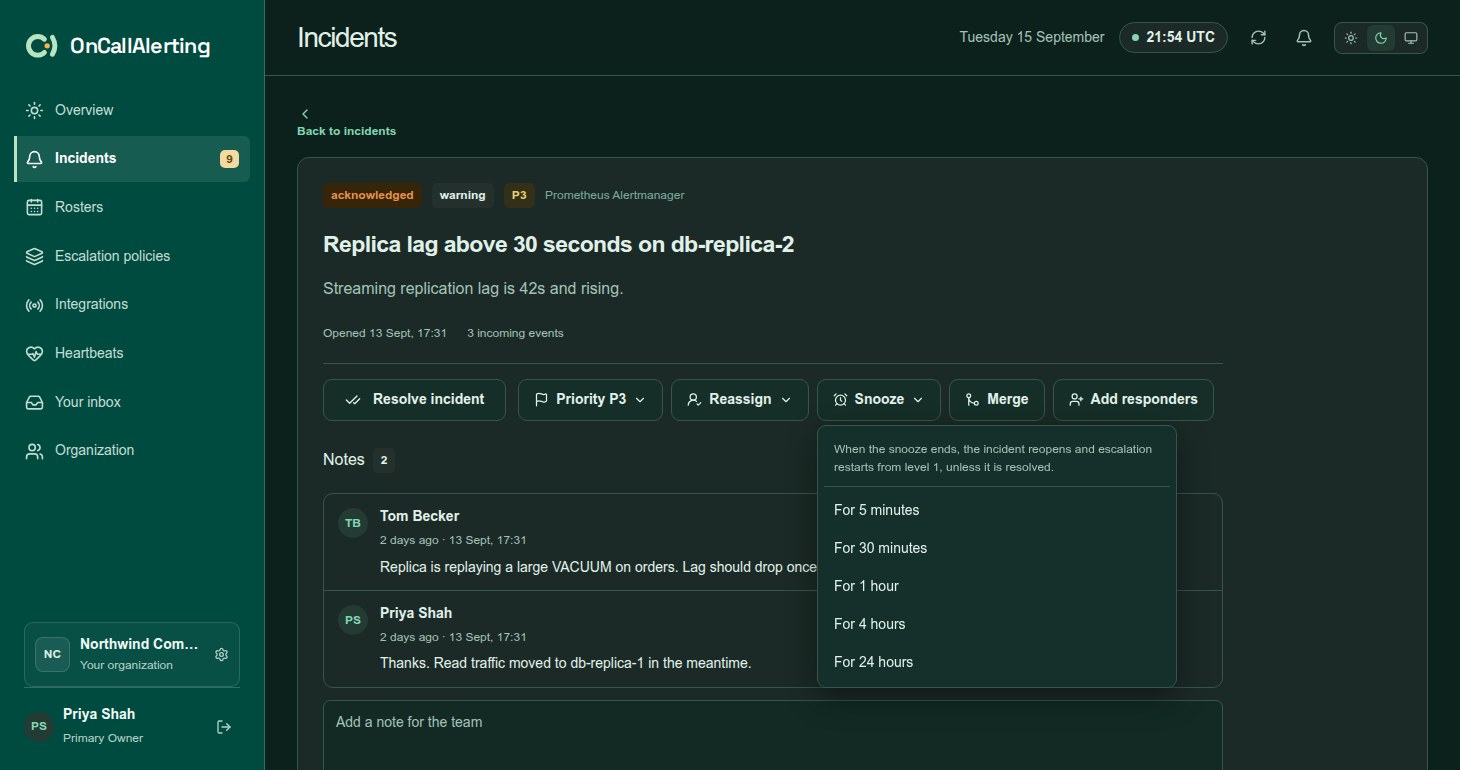
Snooze puts an acknowledged incident aside for a while and brings it back if it is still not resolved. Acknowledge the incident first, then select Snooze and choose For 5 minutes, For 30 minutes, For 1 hour, For 4 hours or For 24 hours. Through the API a snooze is 5-1440 minutes.
While it is snoozed:
- Nothing is notified. The incident shows "Snoozed until" and the end time.
- Repeat alerts for it only add occurrences.
- Snooze again replaces the end time.
- Resolving the incident cancels the snooze. So does reassigning it, which reopens it at once.
When the snooze ends and the incident is still acknowledged:
- The incident reopens and its acknowledgement is cleared.
- The timeline records "Snooze ended: reopened, escalation restarts at level 1".
- Level 1 is notified straight away, and escalation continues from there.
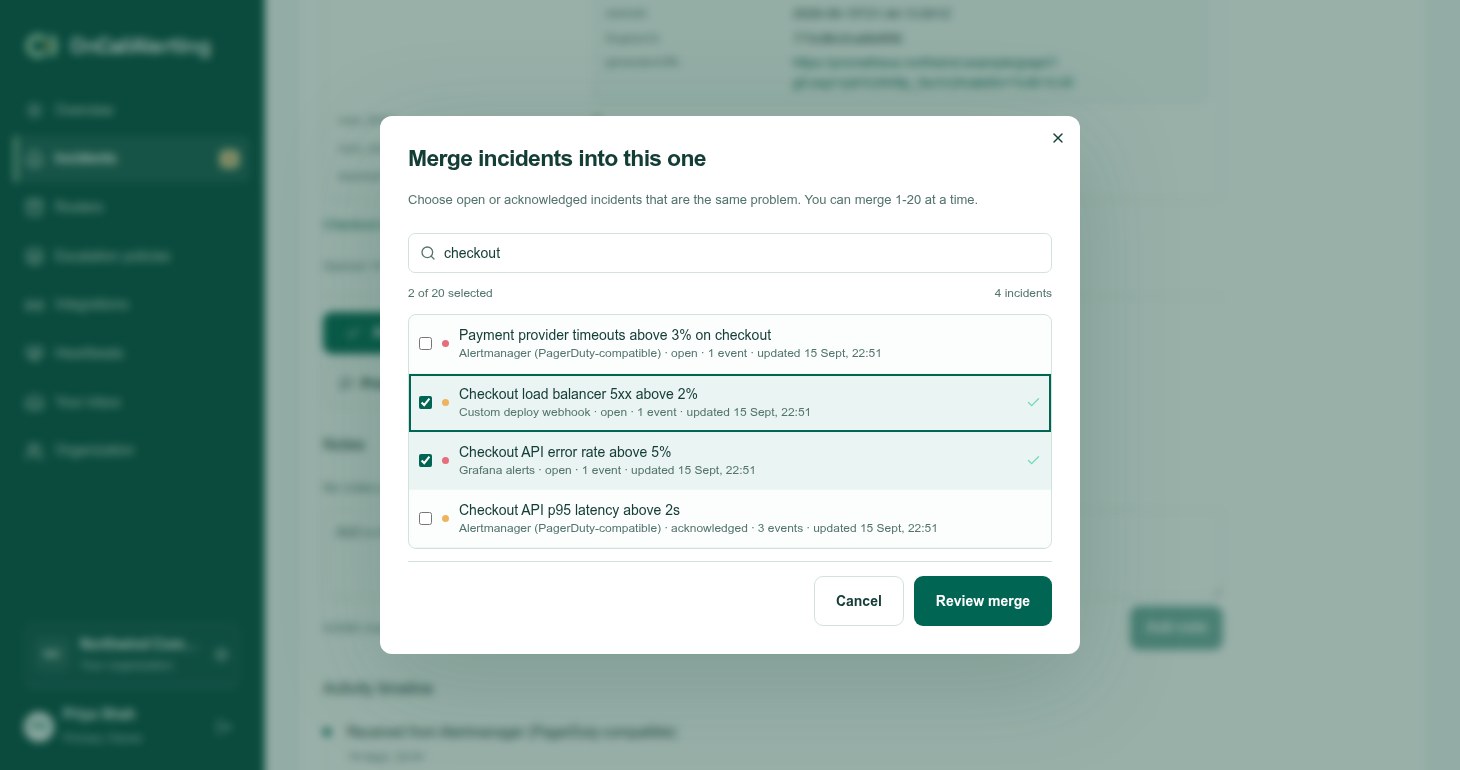
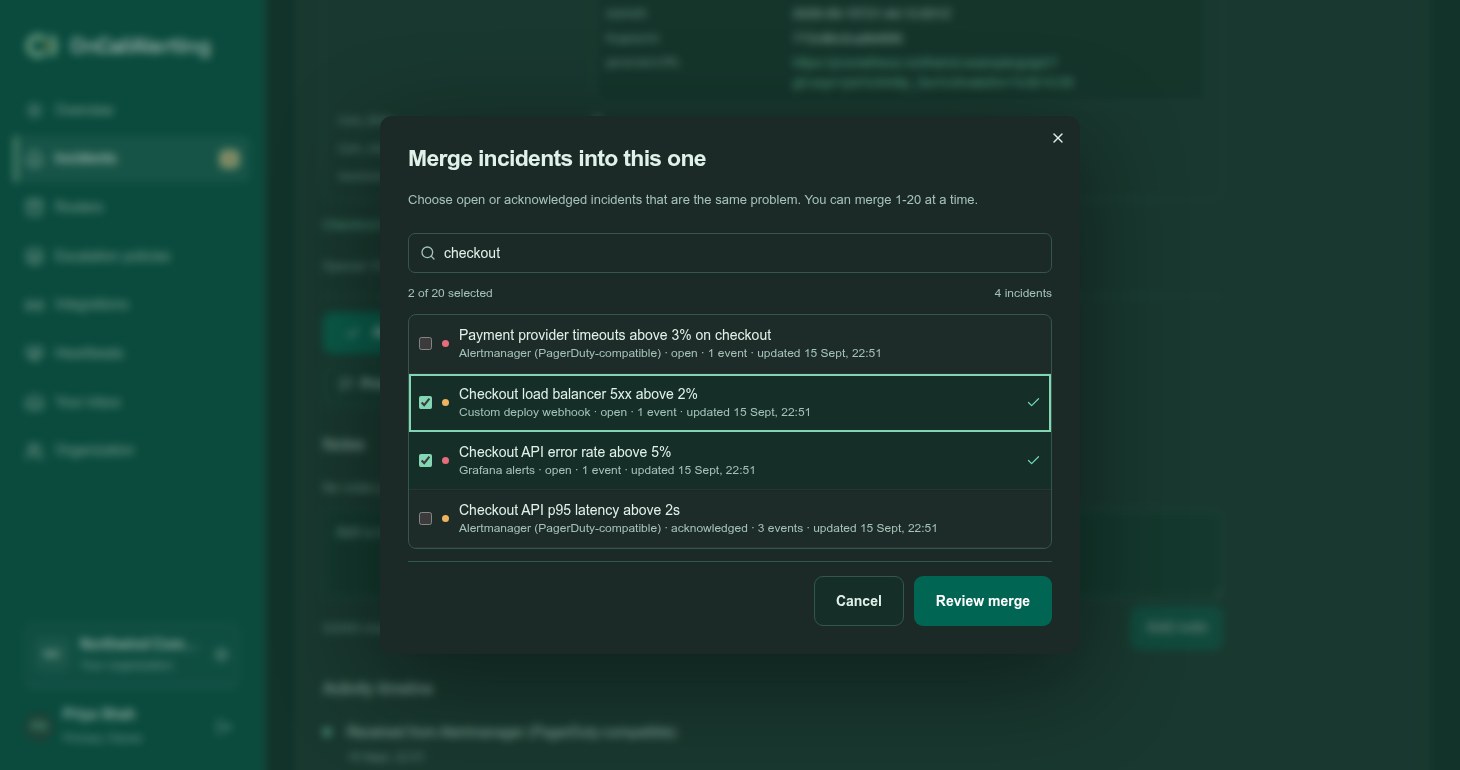
Merge several incidents that are the same problem into the one you have open. Select Merge, tick 1-20 open or acknowledged incidents, and select Review merge.
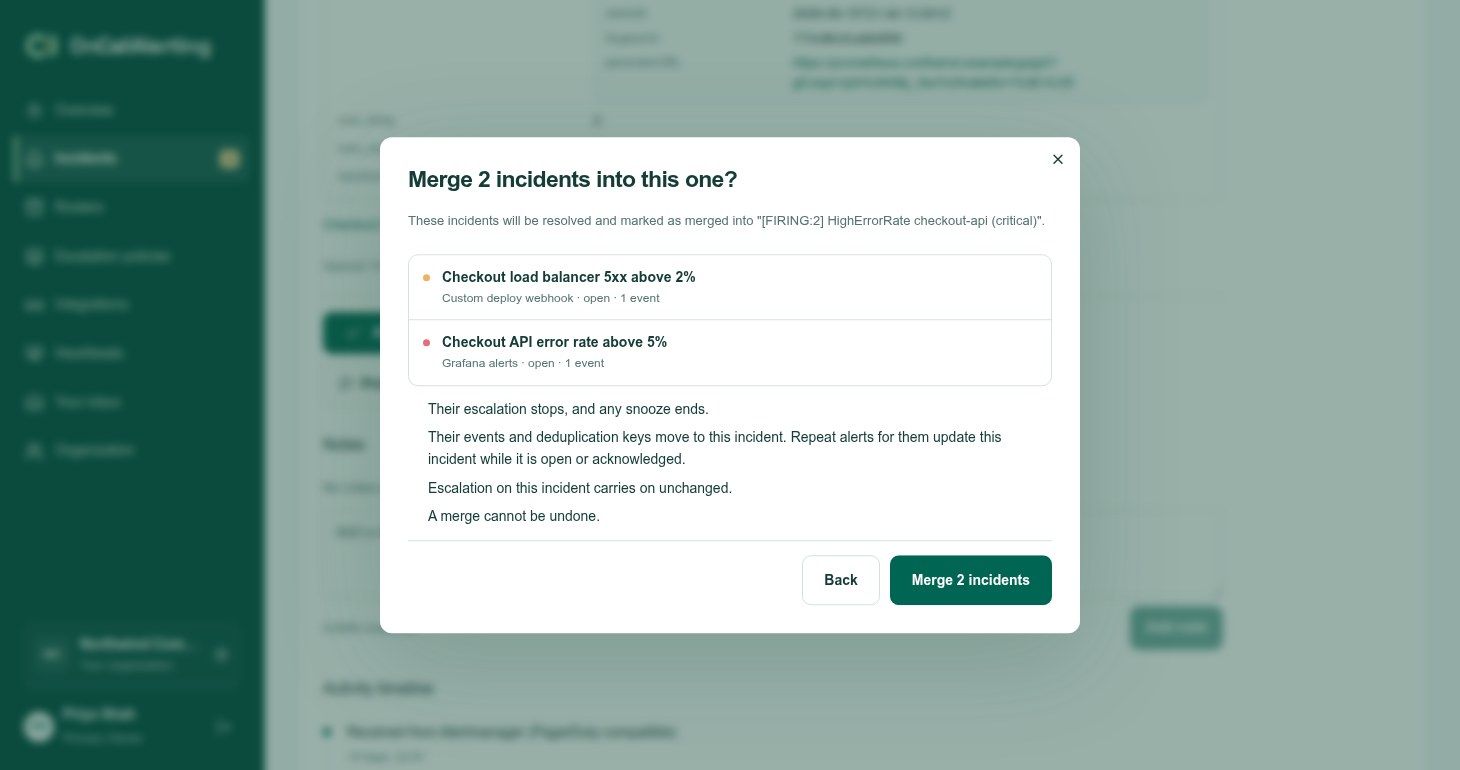
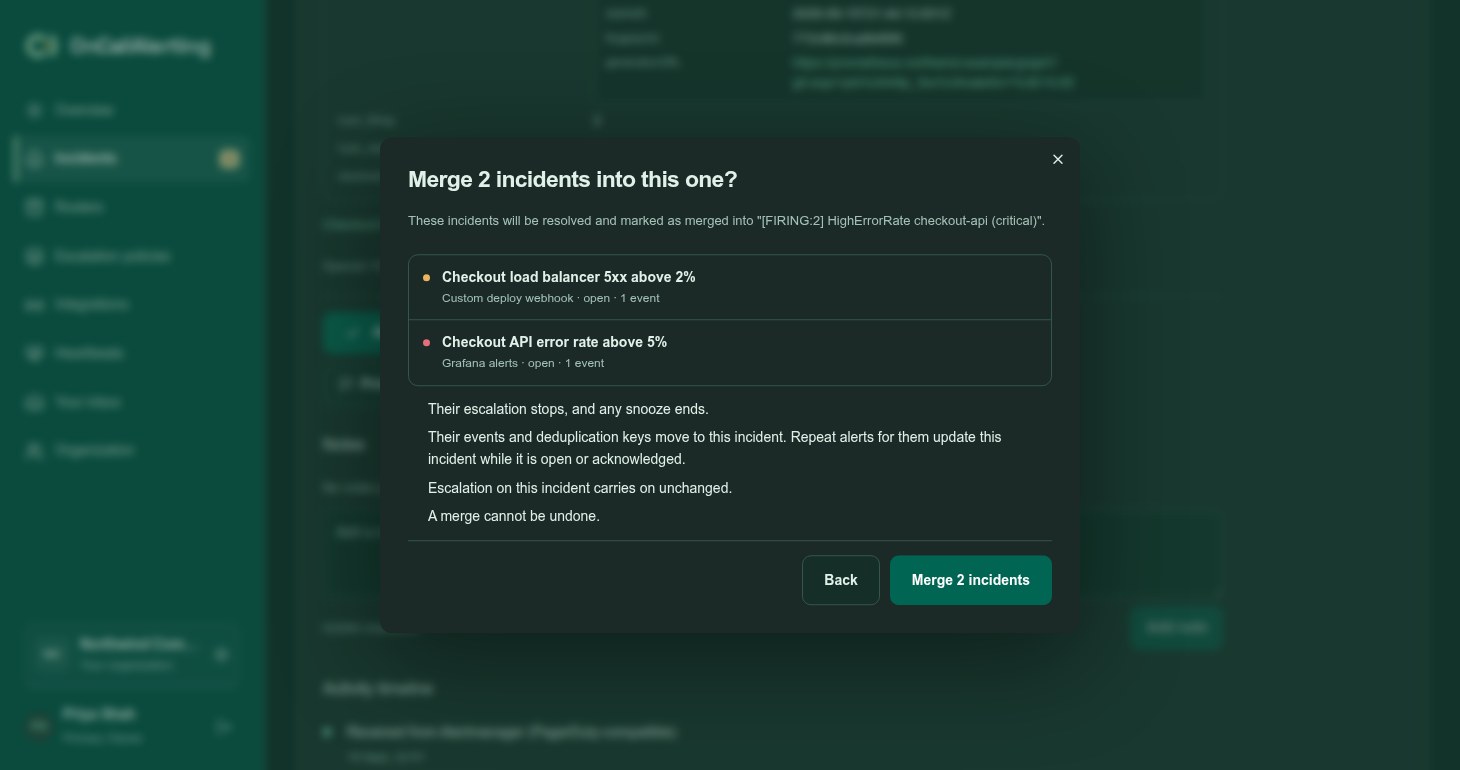
The confirm step lists what happens. Select Merge to go ahead.
For each incident you merge in:
- It is resolved and marked as merged into this incident.
- Its escalation stops, any snooze ends, and its pending Slack notifications are cancelled.
- The timeline records "Merged into", the title, and who merged it.
For the incident that stays open:
- Its escalation carries on unchanged. It keeps its own policy, level and round.
- It gains the merged incidents' occurrences and their deduplication keys, including any keys already merged into them.
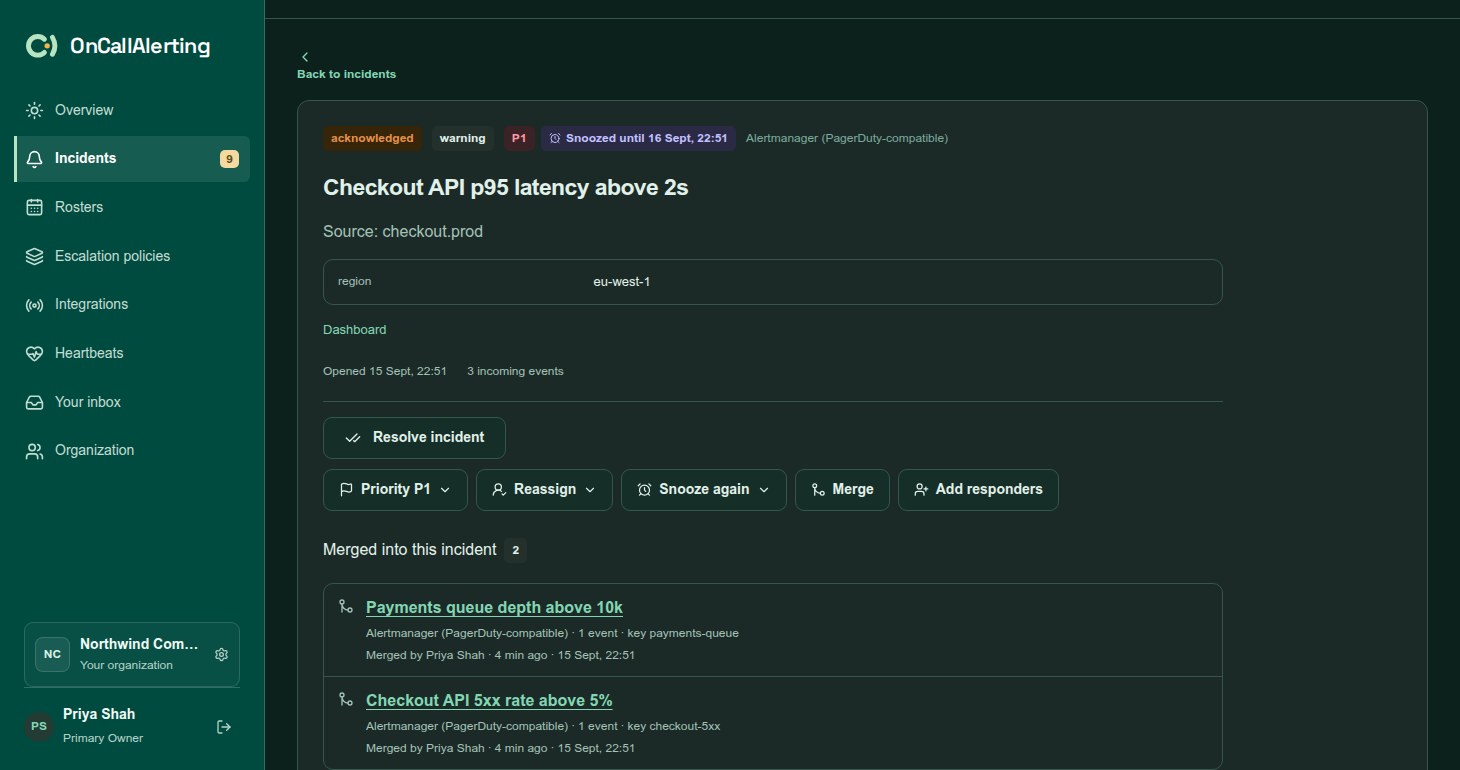
- It lists them under Merged into this incident, with source, events, key and who merged them.
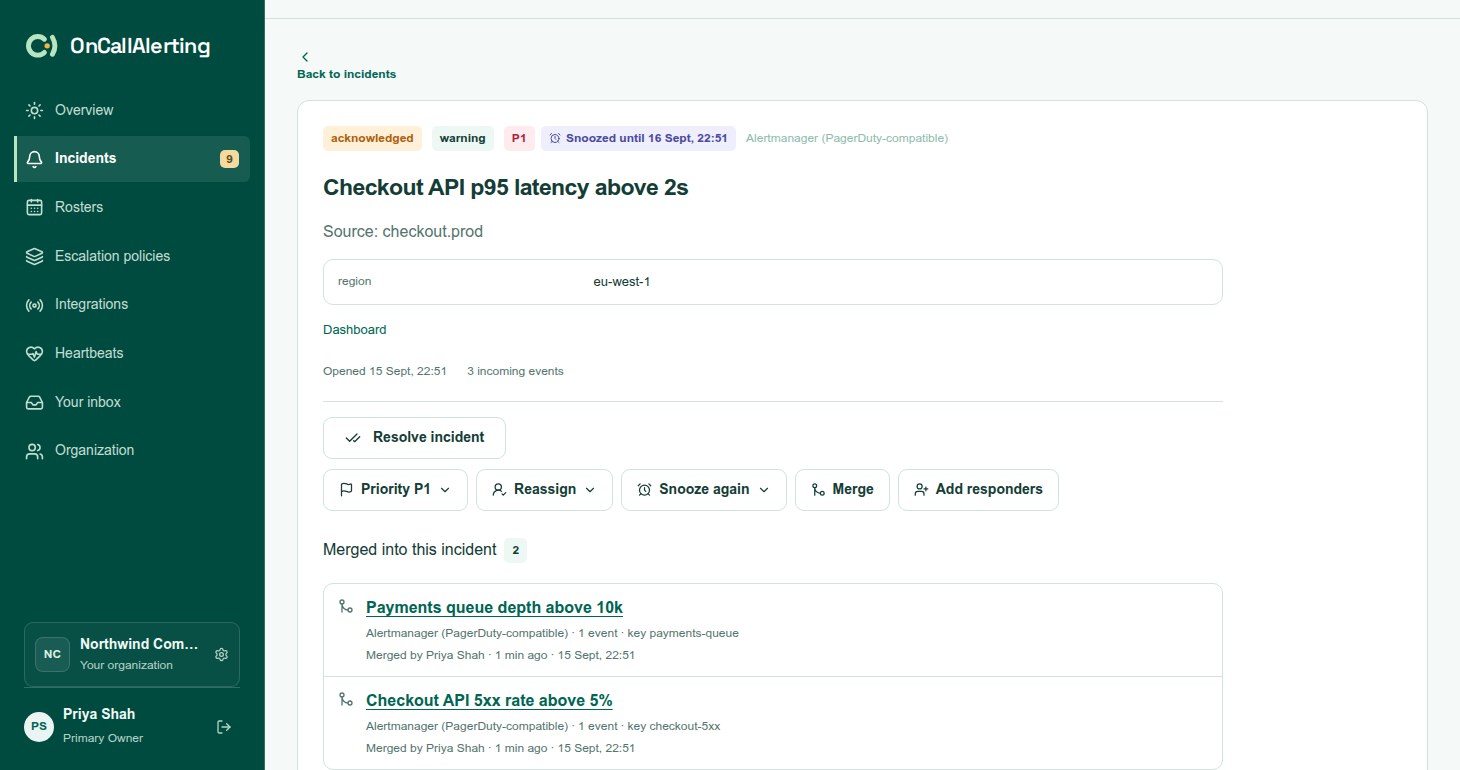
After a merge, alerts for a merged key update the incident that stayed open, while it is open or acknowledged. That includes acknowledge and resolve calls from the source. Once that incident is resolved, the keys are free, and the next alert for one of them opens a new incident.
Limits and rules:
- 1-20 incidents per merge. An incident holds at most 200 merged incidents, counting the ones already merged into those you choose.
- Incidents from different sources and different policies can be merged.
- A merge cannot be undone.
Add responders
Section titled "Add responders"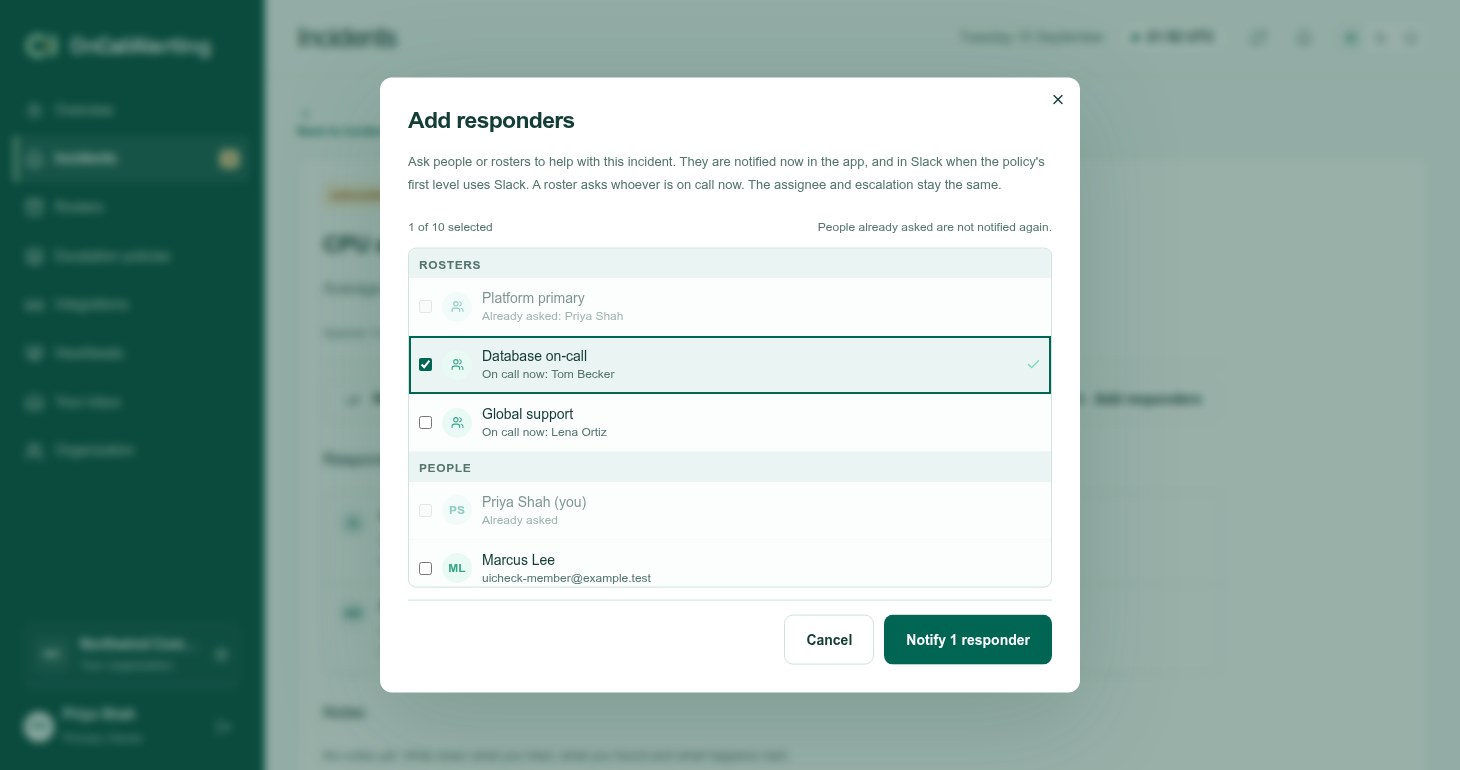
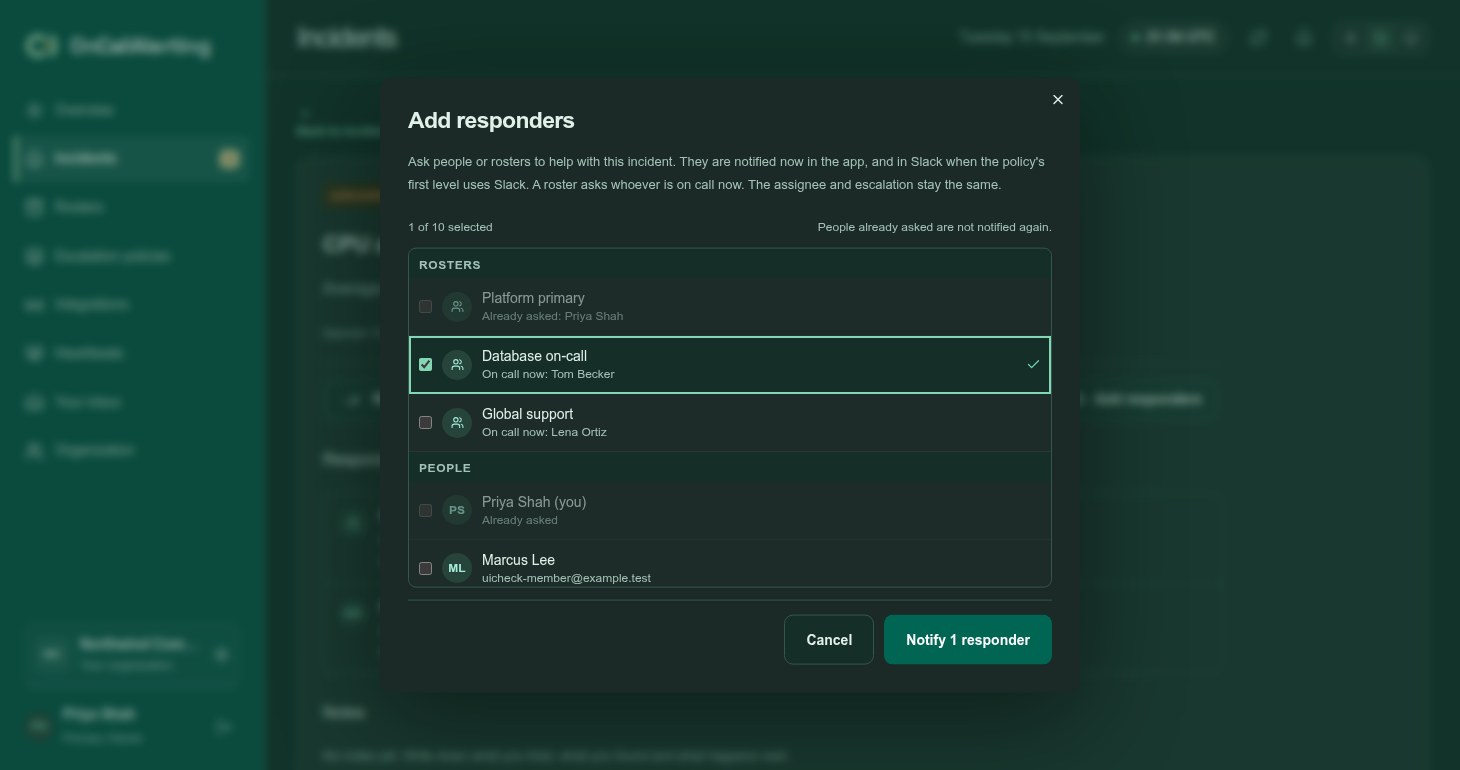
Ask more people to help without changing who owns the incident. Select Add responders, tick up to 10 rosters or people, and select Notify.
- The people asked are notified now with "Response requested by" your name, in the app and on the channel of the policy's level 1.
- A roster asks whoever is on call now, or the awake follow-the-sun shift. When nobody is on call, the primary owner is asked.
- Each person is asked at most once per incident. People already asked are skipped, and a request that adds nobody new changes nothing.
- Escalation and the assignee stay the same.
- An incident holds up to 50 responder requests.
The Responders section lists each request, who asked, and who was notified.